
File Transfer
Upload and download your first file, check completion, and understand sync and mapped-drive transfers.
Upload and download your first file
Before you start: Sign in at the address provided by your organization and use a folder where you have upload and download permission. Choose a small, non-sensitive file for this exercise. In Enterprise Files, open a department or an authorized folder first; the department list itself is not an upload destination.
- Open the destination folder. Choose New > Upload File and select a local file, or drag the file into the folder. For other methods, see “How to upload files?” in FAQ: Getting Started, Account and File Space.
- Wait for the transfer to finish. In the desktop client, open Transfer in the left sidebar to check progress and results. In a browser, check the upload progress or error message shown on the page.
- Return to the destination folder and check the uploaded file's name and size. A file appearing in the list is not sufficient confirmation while its transfer is still running or reporting an error.
- Select the file and choose Download in the file list or the file's context menu. Follow the browser or client prompts to save it locally.
- Wait for the download to finish, then open the local copy and check its contents. You are done when the transfer reports no error, the file is present in the destination folder, and the downloaded copy opens with the expected contents.
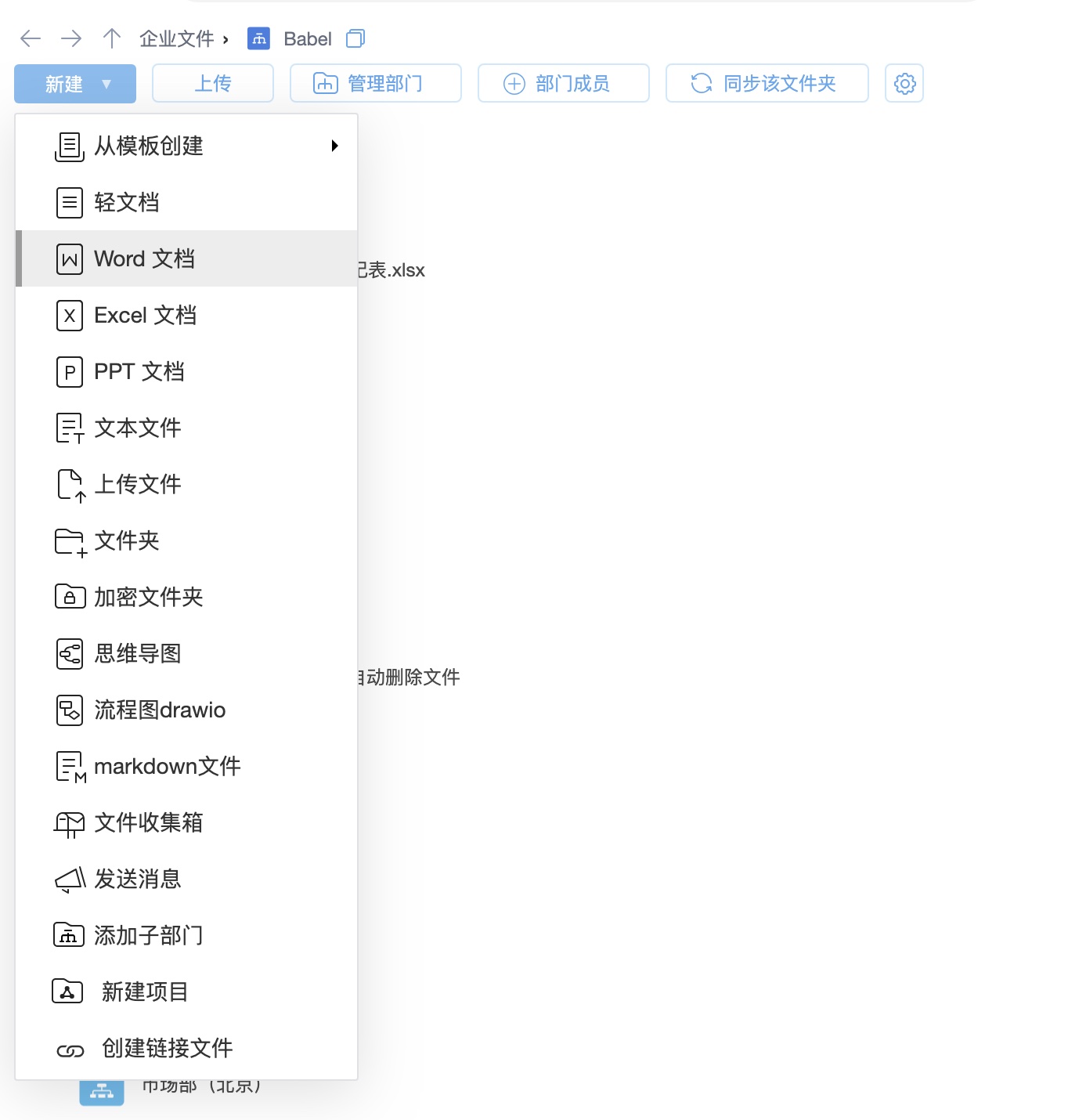
Missing controls or a failed transfer: Check the organization address and destination folder, then ask the folder administrator to verify your upload/download permissions. Record the file name, size, time and error message. After a network interruption, check the original task before retrying to avoid duplicate submissions. For client sync issues, see FAQ: Sync and Clients.
For sync and mapped drives, see Clients, Sync and Mapped Drives. The Kylin client supports sync but does not support mapped drives.


Detailed description
The data transmission module is the core component of BabelBird Enterprise Drive and is responsible for managing the data transmission of upload, download, sync folders and mapped drives. This module uses a variety of technologies to ensure data security, reliability and efficiency.
Technical features
File chunking:
The data transfer module uses file chunking technology to break large files into small chunks for more efficient transmission and storage. This not only helps reduce network traffic and server resource consumption, but also supports resumed downloads and incremental uploads and downloads.
Hash verification (instant upload):
Hash verification is used to ensure file integrity during data transfer. Each file block has a corresponding hash value, and the server and client verify these hashes against each other to detect any data corruption or tampering.
At the same time, if there is already a file with the same hash code in the storage system, the file does not need to be uploaded again. This enables instant upload when identical content is already stored.
Upload security check:
Private deployments can optionally enable Online Antivirus. Before uploaded files enter the drive, they can be scanned by the ClamAV antivirus module. If a file contains a virus or is identified as risky by the virus database, the upload is blocked. The capability supports pure intranet deployment and periodic virus database updates.
TLS/SSL transport encryption:
TLS/SSL encrypts data on the transport connection, reducing the risk of interception while data travels over the network.
Resumable transfers:
BabelBird Enterprise Drive supports breakpoint resumption, allowing users to continue uploading or downloading files from the last interrupted point without restarting the entire process if the transmission is interrupted. This saves time and bandwidth.
Incremental upload and download:
The data transfer module also supports incremental uploads and downloads, allowing users to transfer only chunks of files that have changed, rather than the entire file. This is useful in cases of large files and frequent synchronization.
Advantages
Data integrity:
File chunking and hash verification ensure data integrity, reducing the risk of data corruption or tampering.
Data security:
TLS/SSL provides encryption in transit. Its use alone does not establish that the product provides end-to-end encryption.
Efficiency:
Resumable transfers and incremental upload and download improve the efficiency of data transmission, saving time and bandwidth.
Save storage space:
Using file hash code technology, only one copy of a file with the same hash can be stored on disk. No matter how the file path or file name changes, or how many file copies there are in the network disk, the actual storage space of the file only occupies the capacity of one file. (deduplication storage)
High-speed upload:
Files with the same hash value do not need to be uploaded again. If you upload a file that already exists on the network disk, if the same hash value is detected, it will automatically be marked as uploaded successfully, and there is no need to upload it again.
The data transfer module is a key component of BabelBird Enterprise Drive. By adopting these technical features, it ensures that users can upload, download and synchronize their files safely and efficiently. The function of this module is to make BabelBird Enterprise Drive a reliable data management platform.