
FAQ: Getting Started, Account and File Space
The following questions cover common operations, permissions, collaboration and troubleshooting scenarios when users use BabelBird Enterprise Drive.
1. What can the Babel bird do?
BabelBird is an enterprise network disk that mainly solves the three major problems of unified management of enterprise files, collaboration, and data security. BabelBird can automatically synchronize your work files to the cloud. You can use BabelBird to access your personal files or files in your department anywhere you have access to the Internet. In the Babel client, you can right-click the edit button on the file, use local applications to edit cloud files, or edit office documents online (you need to purchase the online office module). At the same time, you and your colleagues will also have a unified department space in BabelBird, and people in the entire department can access department files with different permissions. Everyone in the department can jointly annotate discussion files and collaboratively edit Office documents (you need to purchase the online office module). The editing operations of each file will be saved to form a new version, ensuring that your work will not be lost due to improper operation or equipment failure.
2. What devices can BabelBird be used on?
BabelBird supports access using browsers (supports Html5 specification, Chrome browser is recommended), iOS devices (Apple phones and iPads), and Android devices. You can also install Windows client and Mac client. It also supports access to DingTalk and Enterprise WeChat (relevant modules need to be purchased separately).
3. Where to register a BabelBird account?
Public cloud users can use the official website (website: https://www.babel.cc) to register for the enterprise public cloud version or personal version. The enterprise public cloud version only requires a mobile phone number to register, and other members of the enterprise are added by the administrator in the enterprise console.
Registration address: https://www.babel.cc/p/signin-entry.do
At the same time, you can also download the client and use BabelBird on the client. The download address is below:
https://www.babel.cc/p/download.do
Private cloud users can ask the IT administrator to obtain the login address of their enterprise.
You can download the corresponding client on our website, click the private cloud entrance button, enter your company's domain name, and jump to the login interface to log in.
The private cloud account is created by our deployment personnel when deploying the privatized Babel system, and other members of the enterprise are also added by the administrator in the enterprise console. Download address: https://www.babel.cc/p/download.do
4. How to log in to my BabelBird?
The login account and password for the public cloud enterprise version of BabelBird are assigned by the administrator. Just click to log in on the official website homepage. You may have received the corresponding account password in your email or mobile phone. Enter it on the BabelBird public cloud login interface to log in to your company.
Login entrance:
https://www.babel.cc/account/signin.do
BabelBird will allocate an exclusive second-level domain name to enterprises on the public cloud. You can also log in through this domain name. The usual format of the domain name is as follows:
https://xxx.babel.cc
If your company has purchased privatized BabelBird, you can enter your company's exclusive cloud disk address in the browser to log in. If you do not know the cloud disk address (enterprise domain name), please contact the enterprise IT personnel.
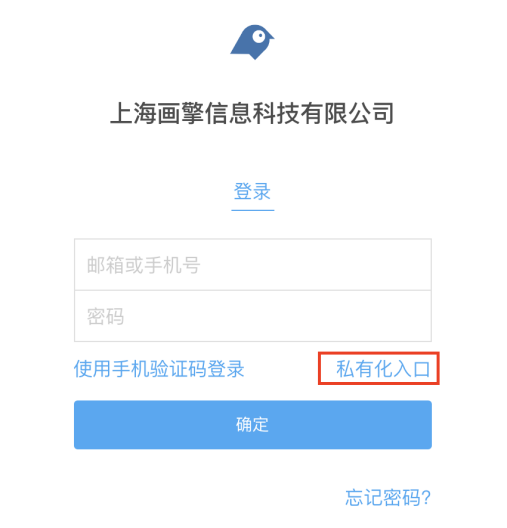
If you use the client or APP, please click the "Private Cloud Portal" button and enter the domain name before logging in. The private cloud entrance button is usually below the login box.
After clicking on the privatization portal, a domain name input box will appear, requiring you to enter the privatized domain name (just enter the domain name header directly, without adding http or https). The https protocol is selected by default. At this time, enter your company's cloud disk domain name and click OK to enter the private cloud login interface.
The BabelBird enterprise account is assigned by the administrator. After the administrator assigns it, it will automatically send an email or text message. Use the email address to which the email was received and the initial password attached to the email or the mobile phone number and the initial password in the text message to log in.
If your company uses domain control single sign-on, enter your user name and password to log in. Generally, the user name is your domain control email address and the password is your domain control password.
After setting up the domain name address to log in to the private cloud, the system will remember the private cloud address. You can log in directly by clicking on it next time without having to enter it again.
5. When logging in, it prompts "The user does not exist." What's going on?
Check the account number you entered to make sure it is entered correctly.
Check whether your account is the login account assigned by the administrator. The BabelBird login account is usually an email or mobile phone number.
If you are a private cloud customer, the most likely problem is that you entered your login account and password into the public cloud login portal. If you are a private cloud user, you need to use the private cloud login portal. How to log in to a private cloud account, please refer to FAQ Question 4: How to log in to my BabelBird?
6. How to upload files?
BabelBird supports a variety of ways to upload files, but BabelBird will determine whether you have upload permission in the upload target directory. If you do not have upload permission, it will give a prompt or not respond depending on the upload method. Commonly used upload methods are as follows:
Browser and client drag and drop upload: Open the target folder on BabelBird, and directly drag the file or folder to be uploaded to the target folder for upload. (Some browsers do not support drag-and-drop upload of folders. If you need to drag-and-drop upload in the browser, it is recommended to use the Chrome browser)
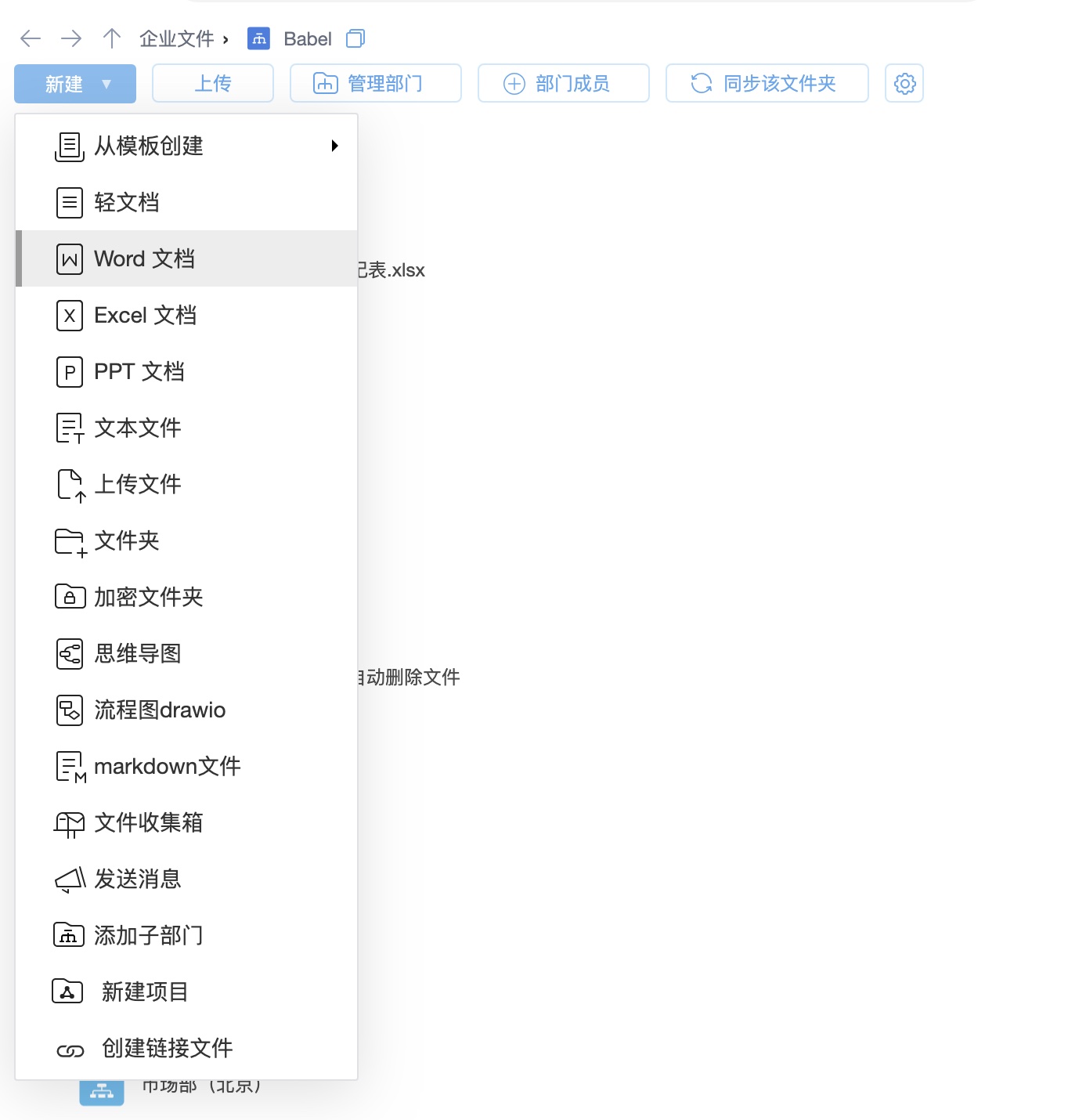
Click the "New" button in the upper left corner to upload: Open the directory to be uploaded on BabelBird, click the "New" button and select "Upload File" to select the file to upload.
After installing the client, right-click the file or folder you want to upload locally and select BabelBird--Upload the file.
Use the client synchronization function to upload: After the folder is synchronized, drag the file to be uploaded directly into the folder, and the file will be automatically uploaded to the corresponding folder of BabelBird.
Use the mapping disk to upload: Open the target folder in the mapping disk and drag the files to the mapping disk. As long as your account has the upload permission for the folder, the files in the mapping disk will be automatically uploaded.
Open the BabelBird target folder on the mobile APP, click the + sign in the upper right corner to select the upload file to upload.
Open the file on WeChat on your mobile phone, select the "More" button in the upper right corner, select "Open with other apps" and select "BabelBird" to upload.
7. Why can't I upload files or create folders in Enterprise Files?
Babel's corporate files are managed on a department-by-department basis, so the root directory of the corporate file column is used to display the department to which you belong. You cannot upload or create new files in the root directory. To upload files to the enterprise, you need to click on the department you are in and upload it in the department.
If you cannot upload files in a department (you do not see the upload button) or the drag-and-drop upload does not work, please contact the administrator to confirm whether you have upload permission in the department.
8. How to create a new folder?
Members who have the permission to create new folders in the department can create new folders in the department folder.
You can create any folders in your personal files (some corporate settings do not allow users to upload personal private files. If this setting is turned on, you cannot create new folders in your personal space)
Right-click the blank space where you want to create a new folder, and a new menu will pop up. Select the new folder in
You can also click the "New" button in the upper left corner to create a new folder.
9. How to enter the enterprise console?
The administrator clicks on the avatar in the upper left corner and selects the enterprise console to enter
10. What is a role?
Roles are a collection of permissions of members in a department. After setting roles, different members can be assigned different roles according to the management needs of the department. If the member is in the department assigned the role, access to the department folder will be based on the permissions the role has. Babel allows a company member to have different roles in different departments, that is, different access rights.
Multiple department members can use the same role. Just set the role and assign it to members as needed. But this also means that after the permission content of a role is changed, the permissions of members using the same role will also be changed.
Administrators can customize or modify role permissions in the enterprise console - permission management - department permission list.
11. What is the difference between the blue folder and the yellow folder?
The blue folder with the word "Enterprise" is an enterprise folder, and everyone in the entire enterprise (except those who are restricted members) can access the contents. There are two types of enterprise folders: enterprise publishing folders and co-publishing folders. Only enterprise administrators, security officers, and archivists can upload files to the enterprise publishing folder. All members of the company can upload files to the common publishing folder. Generally, some corporate announcements or commonly used software and other common corporate resources will be placed in the corporate folder.
The other blue ones are department folders. The files in the blue folders belong to departments and enterprises. Generally, users will see a blue folder named after their own department in the "Enterprise Files" column. This folder can only be created by parent department administrators or enterprise super administrators, operation and maintenance administrators, and security officers. Files placed in this folder are usually visible to everyone in the entire department. Department folders can be understood as shared folders for the entire department.
The yellow folder is a normal folder. Any role in the department (under the department folder) with permission to create new folders can create it. Generally, people in the entire department can access and upload files to the yellow folder created under the department folder. The yellow folder created under "Personal Files" is a personal folder and will only be visible to you if you do not share it.
The dark blue folder is the project folder. The project folder is the personal project in the personal file and the enterprise project in the department. Project folders are assigned project member permissions by the project leader and project assistant. A validity period can be set for the project folder. After the validity period, only the project leader and project assistant will be able to see it. For projects under department folders, department managers (roles with department file management permissions) can also manage and view and download all files inside.
12. Where are my personal files stored?
If your company has turned on "Allow users to upload personal private files" (usually turned on by default), you can upload your personal files in the "Personal Files" column on the left side of BabelBird. Personal files are only visible to you as long as you don't open them for sharing.
When an employee leaves the company, the administrator can transfer the member's files to the designated company member. This transfer includes personal files.
13. What is a department folder?
In the Babel document system, the file/folder system has two types of ownership: personal files and corporate files.
Enterprise files are organized into departments. According to the organizational structure, each department will have a department folder belonging to the department. Department folders have the following characteristics:
Members of the same department, as long as the permissions allow, can access the department folders of their own department and use the files in them.
Department files belong to the enterprise, and the department administrator (a person with department file management authority, usually the department manager) has jurisdiction over all files within the department.
Department managers can add or remove members from the department and change members' permissions.
Members of the parent department can set whether they can view sub-departments based on role permissions.
After department members delete department files, they can view and restore them in the recycle bins of themselves, department managers, and enterprise administrators.
For all files/folders in the department, the department manager can turn on file access control to precisely control the operation permissions of department members and roles on the files/folders.
Department managers (people with department file management rights) do not need to log in to the enterprise backend and can directly manage departments from the front desk. Only members of the department, super administrators, and security officers can access the files of the department.
If you have file sharing permissions in your department, you can invite members of other departments or external users to access department files.
If there is no file sharing permission in the department, link sharing and invitation sharing require the consent of the department administrator.
Non-department members cannot view the department's updates and join department discussions.
Department folders have independent logs and management, which can be viewed by department managers.
14. What is a project folder?
Many times, we need to cooperate with multiple departments and share files across departments. At this time, we need to create project folders.
You can create a personal project in the "Personal Files" root column, or you can create a project under your department (only roles with the permission to create folders/projects can create department projects). Personal projects belong to the creator, and department projects belong to the department. The department manager can view and manage the content under the department project, regardless of whether the project was created by the department manager or whether the department manager belongs to the project. Both personal projects and department projects can invite internal members or external personnel of the entire enterprise, or mobile phones or email addresses that are not registered with BabelBird to join.
The project folder has the following characteristics:
Projects have a validity period, after which project members will no longer be able to see the project. The project leader can change the validity period of the project midway. At the same time, the project can set the validity period of project members respectively. After the validity period of the project member's permission expires, the project member will not be able to access the project, but the files uploaded by the member in the project will be retained.
Both the project leader and the project itself can be transferred. Individual projects can also be transferred to departments or other individuals through transfer, and department project leaders can also be transferred to other departments or other members. If the project is transferred to another department, project ownership and project management rights will also be transferred.
The permissions of personnel within the project are not affected by department roles (except for roles with department file management permissions). The project leader can arbitrarily change the permissions of project members in the project and set the deadline for project members to access the project. However, in departmental projects, roles with "Department File Management" permissions (usually department managers) can access the project without being subject to project permissions.
Project creators and project leaders can invite any member within the enterprise to join the project. It also supports inviting external members to join the project.
The project has an independent project discussion group where group chats can be held.
Department projects can only be created in the department root directory (for ease of management) and cannot be created in other folders of the department.
Personal projects can only be created in the root directory of "Personal Files" and cannot be created in other personal folders. The project supports creating subprojects. Sub-projects can have independent project management permissions and project leaders. Members of the parent project can view the content of the sub-project, and the permissions follow the parent project.
Click on the person's avatar in the discussion group to view the list of files uploaded by the person in the project.
After the project is created, it will be displayed in the "My Projects" root directory of project members. Project members can access the project in the My Project section.
You can also view the projects you have joined or managed in the My Projects column.
15. How to create a project?
Click the New button in the upper left corner in the blank space where a project can be created (personal projects are created in the root directory of "Personal Files", department projects are created in the root directory of the department folder), select the New Project button, and follow the guidance to create the project and add project members. After members are added, they will receive a notification to join the project and can access the project in the "My Projects" column.
You can create a personal project in the "Personal Files" root column, or you can create a project under your department (only roles with the permission to create folders/projects can create department projects). Personal projects belong to the creator, and department projects belong to the department. The department manager can view and manage the content under the department project, regardless of whether the project was created by the department manager or whether the department manager belongs to the project. Both personal projects and department projects can invite internal members or external personnel of the entire enterprise, or mobile phones or email addresses that are not registered with BabelBird to join.
16. What is the difference between department and project?
In Babel, department is the basic unit of enterprise files, and enterprise files are organized in a tree-like manner by root departments and sub-departments under the root department. If you import an organization from a third-party application, the organization will also exist in the form of departments in Babel.
Therefore, department folders are suitable for relatively fixed organizations (commonly known as departments) in enterprises that need to share files for a long time.
Departments have the following properties in Babel:
Departments at the same level are independent of each other, and each department can be managed independently or managed by a superior department.
Each department has a corresponding department folder, and department members have corresponding access rights to the department folder through role permissions.
Member roles in the management department need to have the "Department File Management" and "Manage Department Personnel" permissions.
If you want to manage subordinate departments, you need the role permission "Subdepartment Management".
To view sub-department files, members of the parent department need the role to have the "View sub-department files" permission.
The administrator allocates the upper limit of storage space to each department.
The security officer sets the overall security policy of the enterprise or department.
The access rights of department members in the department are determined by the department members' role rights in the department. Files in a department can also be controlled by file access control to control members' access rights. File access control rights have a higher priority than members' role rights in the department.
Department members can only see the department they joined in the root column of the enterprise file. For example: If the member joins both the parent department and the sub-department, the two departments will be displayed in the root column of the enterprise file. If only one department is added, only one department will be displayed in the root column of the enterprise file.
The super administrator will display the enterprise root department (named after the enterprise name) in the enterprise file root column, which contains all departments of the enterprise.
Deleting a department will lose all department files for that department.
Sub-departments and projects can be created in departments, and ordinary folders can also be created or uploaded.
Projects can only be created in department folders, not ordinary folders in departments.
In Babel, projects are suitable for cross-department collaboration, or temporarily formed project teams to share files. The project can include other department members or external members, making it more flexible.
The Babel project folder has the following characteristics:
They are divided into personal projects and enterprise projects. Personal projects can be created in the personal file root directory and managed by the creator. Enterprise projects can only be created under department folders. Different departments can create different projects.
Anyone with personal private files can create personal projects (whether users are allowed to upload personal private files can be turned on or off in the enterprise console)
Enterprise projects need to be created by department members in the root directory of the department, and the member role needs to have the "Create Folder/Project" permission.
Projects are managed by a project leader (default is the project creator), who can be transferred to others.
Projects can invite other department members or external members to join
Project access rights are equivalent to sharing rights. Optional project access permissions can be customized in the Enterprise Console - Permission Management - File Permissions List.
There is a "My Projects" column in the left column of the main interface of all users, which contains a list of all projects created and joined by the user.
Role members with the "Department File Management" permission in the department where the project is located can access and manage the project.
External members can join the project through email or mobile phone number verification (the email or mobile phone number used to invite them to join the project).
Files within the project can also have fine-grained control over permissions through "File Access Control".
Projects can be transferred from individuals to departments and from departments to other departments using transfer methods.
A project can have a validity period. After the validity period expires, except for the project leader, administrators of the department where the project is located and other project members will not be able to access the project. Multiple sub-projects can also be created under a project, and sub-projects can be converted into parent projects. Projects without sub-projects can also be converted into sub-projects of other projects.
In summary, the main differences between departments and projects are:
Departments are relatively fixed and have powerful functions. Only department members can access department files through roles and access control permissions, making management more refined. Suitable for long-term organizational structure management.
The project belongs to a certain department or individual and is relatively flexible. Members can be invited across departments or even external members, and are managed by the project leader. Project member permissions are consistent with file sharing permissions, making it easy to use. Suitable for project teams managed on a project-by-project basis.
If department members and project members do not perform "file access control", they can access all files in the department or project by default.
17. Why can’t I upload files in the department?
Your department role does not have file upload permissions. You can contact the department manager to change your role.
You do not have file upload permission for a folder under this department, and permissions are controlled on this folder.
18. How to sort files?
The files in the Babel file list can be sorted according to user needs, and the system will remember the last user's sorting selection under the folder and use the same sorting the next time it is opened.
The way to sort files is: click the "Sort" icon on the far right at the top of the file list and select the desired sorting method.
The default sorting method is "Recent Version", that is, the latest updated files first. You can also choose to sort by name or size.
Users can also customize the global default sorting method. The operation method is: click the avatar - settings - account information - global default sorting, and select the required sorting method in the drop-down box.
Pinned files are not affected by sorting and are always at the top. The default is to sort departments first, followed by inboxes, ordinary folders, and finally files.
There is a switch button for mixing folders and files. If this switch is turned on, when sorting, files and folders will be mixed and sorted according to the specified sorting method.