
Sync And Desktop Client
Folder synchronization connects a local working folder to a BabelBird cloud folder and transfers changes in the chosen direction. Use it for offline work, local editing and shared team files. Choose the direction and check folder permissions before creating a task.
Core Competencies
Windows, macOS and Linux (including Kylin) clients provide the same file synchronization capabilities, including the sync modes, scheduling, exclusion rules and editing locks listed below. Linux clients use builds for their distribution, support local editing and do not support mapped drives. References to Kylin in the table also apply to other Linux clients.
| Capabilities | Description | Support Platforms |
|---|---|---|
| Cloud to local | Any folder in the cloud can be synchronized to any local location, provided the user has download permission | Windows, macOS and Kylin clients |
| Local to cloud | Any local folder can be synchronized to any location in the cloud, provided the user has upload permission | Windows, macOS and Kylin clients |
| Two-way synchronization | Local and cloud synchronization, suitable for long-term maintenance of the same batch of working files | Windows, macOS and Kylin clients |
| Upstream synchronization | Upload local changes to the cloud, suitable for collection, backup, and centralized archiving | Windows, macOS and Kylin clients |
| Downstream synchronization | Cloud changes are downloaded locally, suitable for data distribution, offline use, and standard material delivery | Windows, macOS and Kylin clients |
| Automatic synchronization time | Can set automatic synchronization time or synchronization cycle | Windows, macOS and Kylin clients |
| Sync blacklist | Specify certain file types or temporary files not to participate in synchronization | Windows, macOS and Kylin clients |
| Editing lock | Files in synchronized folders are automatically locked when editing to reduce multi-person conflicts | Windows, macOS and Kylin clients |
Scroll horizontally to view all columns
Permission prerequisite
- Synchronizing from cloud to local requires download permission for the target folder or file.
- Synchronizing from local to cloud requires upload permission to the cloud target directory.
- If folder permissions, sharing permissions, project permissions, or validity period permissions change, the synchronization behavior should also change.
- When the administrator closes the personal space, restricts downloads, restricts uploads, or adjusts module authorization, the synchronization entrance and capabilities may change with the configuration.
- Linux clients, including Kylin, support file synchronization and local editing but not mapped drives. Install the build for the relevant distribution and processor architecture. Web and mobile access do not synchronize local computer folders.
Conflicts and versions
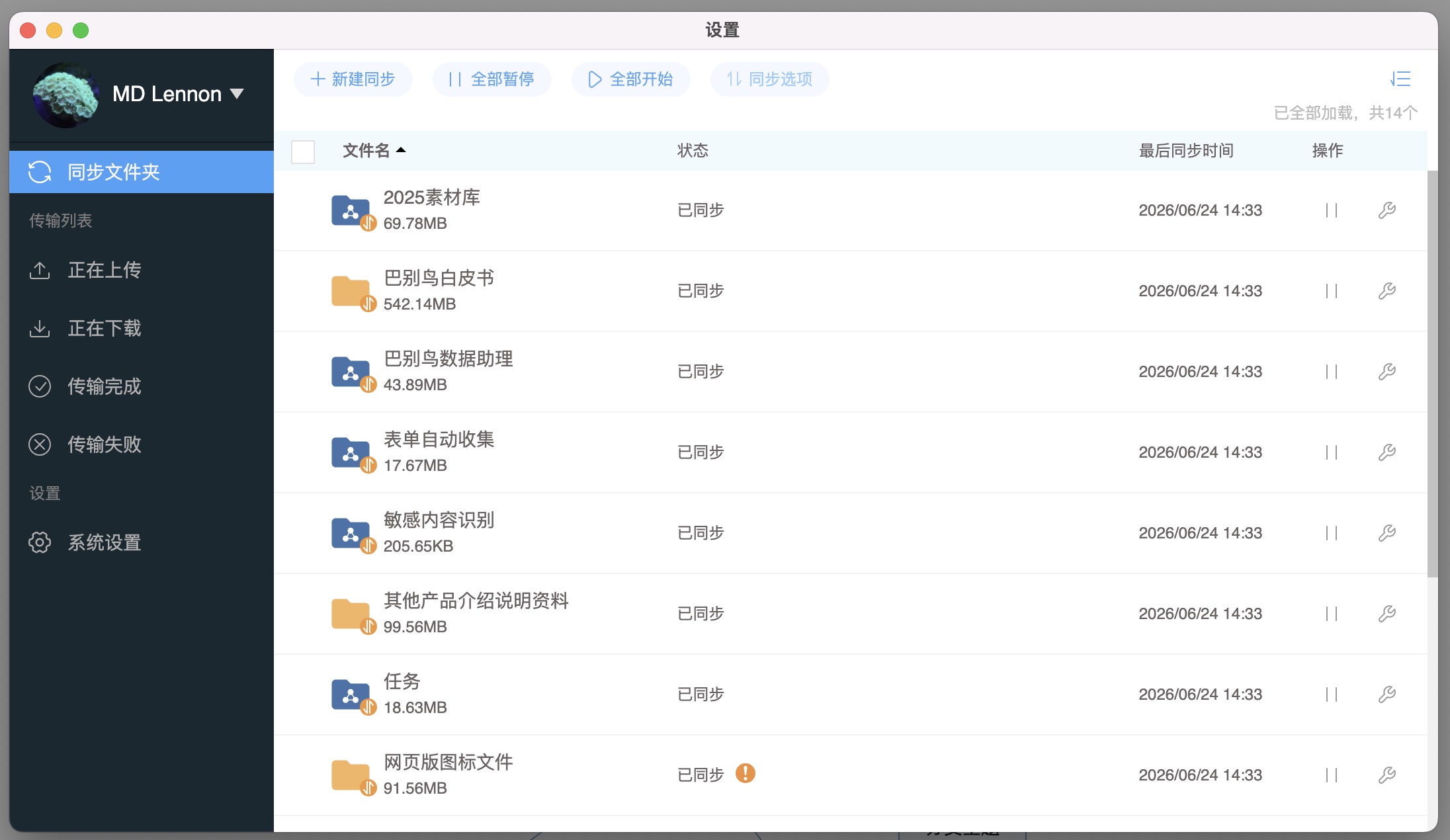
The client monitors changes to synchronized files; a cloud version is created only after a successful upload. Concurrent local and cloud changes can cause conflicts. When an exclamation badge appears, inspect the actual error or conflict in sync management. Before resolving it, stop editing the affected file and preserve independent local and cloud copies outside the synchronized folder. Compare them before choosing a version. Do not start by clearing caches, resetting sync or overwriting local files. If the correct action is unclear, preserve the current state and contact your administrator. See client troubleshooting.
Differences from mapping disk
| Dimensions | Sync folder | Virtual mapped disk |
|---|---|---|
| Local storage | Files within the synchronization scope are saved locally | Files are not all downloaded in advance; opening and editing uses local cache space |
| Offline capability | Synced files can be used offline | More dependent on network connection |
| Applicable scenarios | Fixed work data, local batch processing, offline office, data collection | Browse cloud data like accessing local disk |
| Risk points | When the synchronization range is large, it occupies disk and needs to handle conflicts | Network or permission changes will directly affect the access experience |
Scroll horizontally to view all columns
Applicable suggestions
- For directories that require long-term offline editing or local batch processing, synchronization is preferred.
- To browse large cloud folders without downloading all files in advance, use a mapped drive on a supported client. Opening and editing still uses local cache space.
- For large file scenarios such as design, engineering, video, materials, etc., the synchronization range and blacklist should be set appropriately.
- For confidential information, download permissions, watermarks, audits, confidentiality levels and departmental security policies should be combined.
Overview
Create separate sync tasks for different working folders and manage them in the sync list. Folders containing up to 200,000 files are supported. Check local free space, folder permissions and the sync direction before creating a task.
How to use
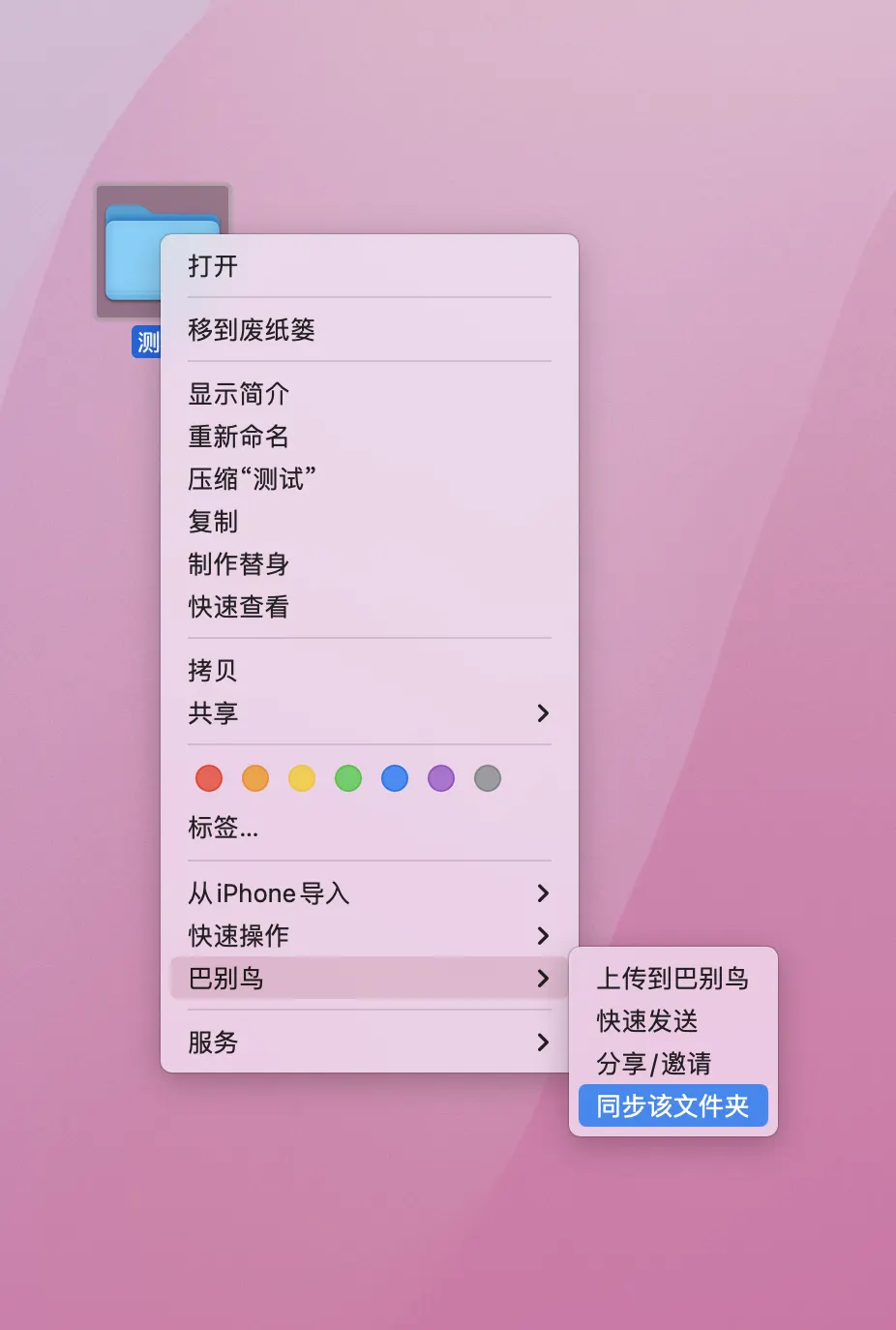
- Install and sign in to the client for your operating system. Right-click a local folder and choose BabelBird → Sync this folder, or select New sync (新建同步) in the client’s sync list.
- Verify the local folder and cloud destination, then choose two-way, upload-only or download-only synchronization. Set scheduling and exclusion rules as needed.
- Start with a test file. For upload-only sync, check the cloud copy; for download-only sync, check the local copy. Test each direction separately for two-way sync. A new cloud version is created only after upload succeeds.
- Inspect the task in sync management. For errors or conflicts, read the affected task and file messages, preserve unuploaded edits and follow sync troubleshooting.
Summary
Confirm completion through the sync status and the contents at the destination. Saving locally does not mean uploading has succeeded. Before restoring older content, check File Versions and Recycle Bin retention.