
Feature Matrix
BabelBird Enterprise Drive can be understood through the full file lifecycle: upload, creation, preview, editing, synchronization, sharing, permission control, version retention, search, archiving, audit, automation and AI retrieval. Actual availability depends on the deployed version, licensed modules and administrator configuration.
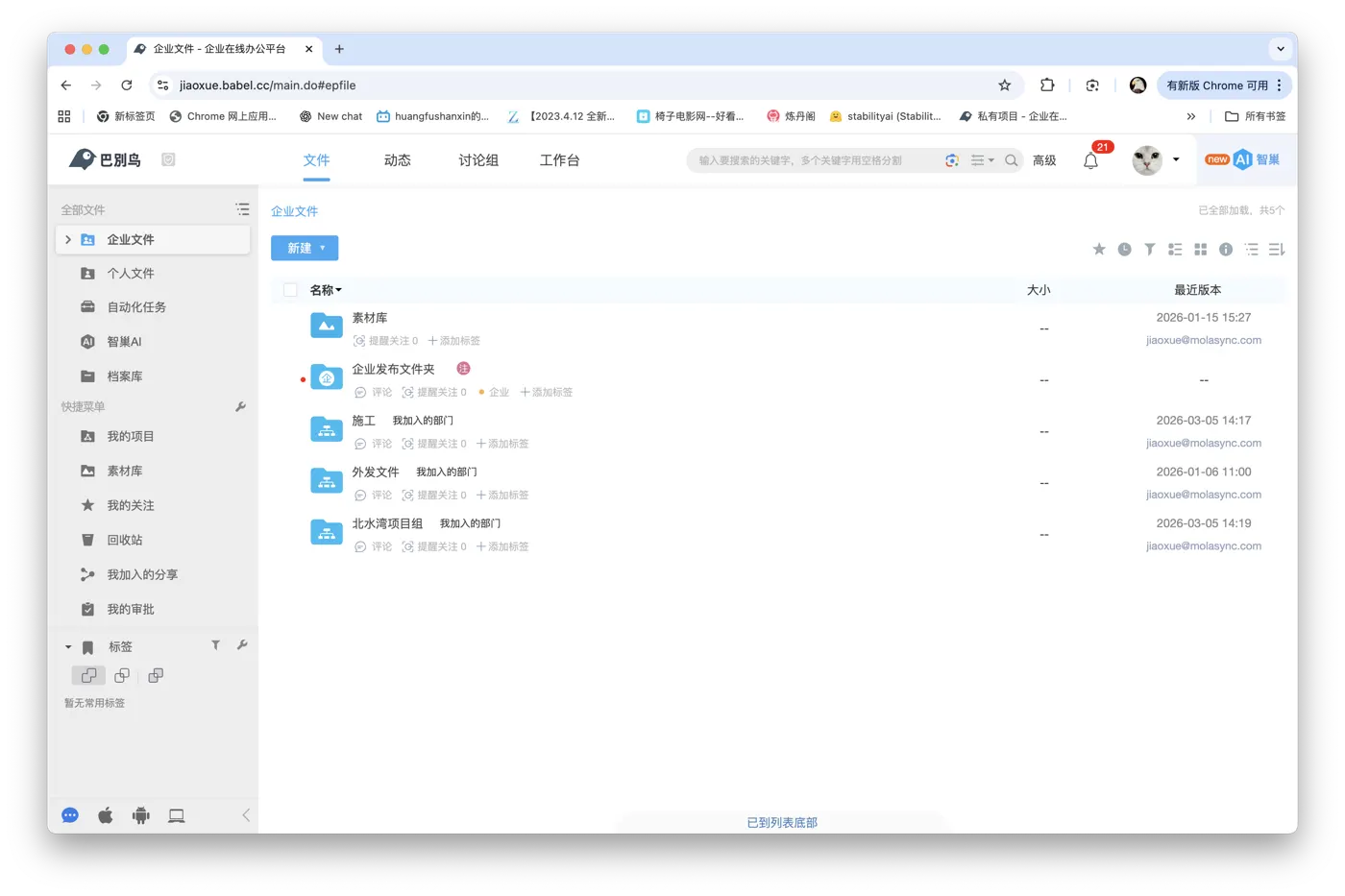
Core Capabilities
| Module | Subfeatures | Description | Typical entry |
|---|---|---|---|
| File management | Upload, download, drag-and-drop upload, folder upload, resumable transfer, instant upload, incremental transfer | Daily file collection, material accumulation and large-file transfer | File list, client, mobile app, mapped drive |
| Creation | Folders, Office files, light documents, text/code files, mind maps, draw.io diagrams, templates | Create business files and standard folders directly in the drive | New menu |
| File organization | Personal files, enterprise files, department folders, project folders, subprojects, file tree, starred files, recent visits | Organize files by organization and collaboration scenario | Sidebar, file list, project channel |
| File details | Tags, descriptions, properties, uploader, versions, access logs, related files | Make files searchable, traceable and reusable | File details panel |
| Search and OCR | File names, full text, tags, descriptions, annotations, image OCR, PDF OCR, Office embedded-image OCR | Make scans, screenshots, image documents and business files searchable | Search, OCR Image Recognition |
| Versioning | Automatic versions, upload new version, rollback, comparison, version comments | Reduce overwrite risk and collaboration conflicts | Details, previewer, desktop client |
| Preview and annotation | Office, PDF, images, video, audio, CAD, code, Markdown, KM, draw.io and more | View and discuss files without downloading | File previewer |
| Online collaboration | OnlyOffice, light documents, Markdown/code/text editing, KM/Xmind, draw.io | Multi-user online editing, local editing and file locking | Online edit entry, client edit |
| Sharing | Invitation sharing, link sharing, snapshot sharing, inbox, upload-only, approval, password, expiry | Controlled internal, cross-department and external collaboration | Share menu, projects, inbox |
| Download control | Download permission, preview-only, download approval, watermarked PDF download, snapshot sharing | Control outbound file flow even after access is granted | Watermark, Sharing |
| Permission system | Enterprise roles, department roles, project permissions, file access control, custom file permissions, sharing permissions | Control who can view, upload, edit, delete, download, comment and manage | Console, department management, file access control |
| Departments and organization | Multi-level departments, department admins, sub-departments, quota and logs | Manage files, members and delegated administration by organization structure | Departments And Organization |
| Project collaboration | Project owners, assistants, external members, sub-projects, expiring permissions | Project file space for cross-department, external and temporary collaboration | Project Collaboration |
| Tag management | Enterprise tags, user tags, file tags, AI-assisted tagging | Adds cross-folder business meaning and improves search/filtering | Tag Management |
| Security enhancements | Watermark, classification level, IP policy, Mac binding, audit log, allow/deny lists, encrypted folder, sensitive content recognition | Protect contracts, finance, HR, R&D, drawings and customer data | Console, folders, New menu |
| Desktop client | Windows, macOS, Kylin, local editing, transfer list, right-click upload, right-click sync, anonymous download | Connect cloud files with local workflows | Desktop client |
| Synchronization | Two-way, upload-only, download-only, blacklist, schedule, conflict handling, 200k-folder sync | Offline editing, distribution and local working directories | Client sync management |
| Mapped drive | On-demand cloud access, virtual drive, local-app opening, permission inheritance | Access cloud files like a local disk | Desktop mapped drive |
| Material library | Categories, sub-libraries, access control, download approval, thumbnail visibility, image metadata | Brand assets, design files, product images, marketing assets and galleries | Material Library, Image Metadata |
| Object storage | File object storage, chunking, horizontal expansion, erasure coding, standby and distributed storage | Large files, material libraries, drawings, videos, archives and private deployment | Object Storage, Object Storage And Erasure Coding |
| Waterfall view | Image-heavy folders displayed as thumbnail waterfall | Faster browsing of images, drawings, posters and material files | File list, material library |
| Archive library | Archiving, reading room, borrowing approval, local archive, archive administrator | Contracts, deliverables, policies and long-term retention | Archive Library |
| Batch operations | Batch upload, download, move, delete, batch rename and batch folder creation | Reduce effort for large-scale organization, migration and project setup | Batch Rename, Batch Folder Creation |
| Automation tasks | Auto clean, auto rename, auto organize, auto PDF, auto extract, signature creation, batch folder creation | Move repetitive file work to background rules | Folder context menu, automation channel |
| Zhichao AI | AI assistant, AI search, smart search, text-to-image search, image-to-image search, OCR, document assistant, table Q&A, deep research | Search, read, answer and analyze enterprise files within permission boundaries | AI entry, search, Zhichao AI channel |
| Zhichao AI management | Enterprise knowledge base, knowledge base robot, custom agent, MCP interface, private model, GPU resources | Customer service, presales, training, knowledge bases and third-party AI integration | Zhichao AI, backend, API |
| Enterprise console | Organization, members, roles, tags, watermarks, logs, notices, statistics, module switches, enterprise settings | Administer organization, permissions and security policies | Enterprise console |
| Private deployment | Stand-alone, cluster, object storage, Xinchuang, dedicated domain, SSO, WeCom/DingTalk/Feishu, data ferry | Intranet, compliance, domestic stack and system integration scenarios | Private deployment project, Third-Party SSO Login |
| Developer API | Authentication, files, sharing, enterprise, departments, material library, following, logs | Business integration, portal embedding, automation and secondary development | API docs |
Key New Or Easily Missed Capabilities
Encrypted Folder
Encrypted folders are password-protected folders inside shared enterprise drive spaces. Users create them from the New menu, enter a folder name and password, and receive a folder with a lock indicator. Opening the folder requires the password each time; even when files inside are shared, recipients still need the encrypted folder password to access the content.
The password must be kept by the creator. The feature uses anonymous encryption, so a lost password cannot be recovered by operators or engineers. See Encrypted Folder.
Sensitive Content Recognition
Sensitive content recognition lets administrators configure sensitive keywords or recognition policies in the enterprise console. Files detected as sensitive can be marked and, depending on configuration, restricted from viewing, sharing or routed to manual handling. It is useful for contracts, certificates, personal data, customer materials, finance files, R&D materials and regulated content. See Sensitive Content Recognition.
Waterfall View
The waterfall view is designed for image-heavy scenarios. It lets users browse material files, design images, product photos, drawings and campaign assets as thumbnails. Image-heavy folders can be switched or adapted to waterfall mode and combined with material libraries, tags, image metadata, text-to-image search and image-to-image search. See Waterfall View.
OCR Image Recognition
OCR image recognition covers search, Zhichao AI and image preview. Users can search text inside images; private-cloud deployments can optionally search image-based PDF documents and images embedded in Office files. Zhichao AI and the image previewer can also extract text and export the result as Word. See OCR Image Recognition.
Batch Rename And Image Metadata
Batch rename applies naming rules to selected files immediately. It is useful for migration intake, photo cleanup, contract scan archiving and project deliverable organization. Image metadata can participate in advanced search, waterfall filtering, material library management, auto rename and batch rename. See Batch Rename and Image Metadata.
Watermarked Downloads
Watermarks apply not only to previews but also to download and print scenarios. Administrators can combine download permissions, preview-only access, sharing policies and PDF conversion to allow users to download watermarked PDF files, preserving visitor or enterprise identifiers in outbound materials. See Watermark.
Zhichao AI Subfeatures
| Subfeature | Purpose | Related page |
|---|---|---|
| AI assistant | Answer questions from enterprise knowledge bases and optional web search | Zhichao AI |
| AI search | Return answers and citations in search results | AI Search and Smart Search |
| Smart search | Q&A, deep research and article drafting | AI Search and Smart Search |
| Text-to-image search | Find drive images by text description | Image Search and OCR |
| Image-to-image search | Find similar images by uploading or selecting an image | Image Search and OCR |
| Image OCR | Extract text from images, make it searchable and export results from Zhichao AI or image preview as Word | OCR Image Recognition |
| Document assistant | Summarize, explain and answer questions for the current document | AI Assistant and Document Assistant |
| Table Q&A | Ask questions, analyze data and assist formulas in Excel | Standard Modules |
| AI auto tagging | Match files to the most relevant tags in the tag library | Standard Modules |
| Enterprise knowledge base | Turn enterprise documents into searchable and answerable knowledge sources | Knowledge Base Robots and Agents |
| Knowledge base robot | Create internal or external Q&A robots | AI Customer Service and Knowledge Base Robot |
| MCP interface | Provide knowledge base access and file operations to external AI applications | Standard Modules |
Automation Tasks
| Task | Purpose | Notes |
|---|---|---|
| Auto clean folder | Clean matching files by rule | Temporary upload areas, collection boxes and periodic cleanup |
| Auto extract | Extract archives after upload | Supplier packages, material packages and project deliveries |
| Auto rename | Standardize file names by rule | Contracts, images, project files and deliverables |
| Batch rename | Apply naming rules to selected files once | Historical cleanup, migration intake and photo archiving |
| Auto conversion | Convert files to PDF or other target formats | Archiving, approval, signatures and read-only workflows |
| Auto organize | Move files to target folders by rule | Collection, distribution, archiving and classification |
| Signature creation | Create or apply signature workflows | Contracts, approvals and formal deliverables |
| Batch folder creation | Generate folders from templates or data | Project setup, customer folders and department standards |
Usage Guidance
- Map the workflow around file intake, collaboration, sharing, archiving and retrieval before choosing modules.
- For sensitive files, combine permissions, file access control, watermarks, encrypted folders, sensitive content recognition, audit logs and download controls.
- For image and material scenarios, prioritize material libraries, waterfall view, tags, image metadata, text-to-image search and image-to-image search.
- For repetitive file handling, use automation tasks to standardize naming, organizing, PDF conversion, cleanup and folder creation.
- For AI usage, confirm knowledge scope, permission inheritance, model deployment, data flow and audit requirements first.