
FAQ: Synchronization, client and mapping disk
The following questions cover common operations, permissions, collaboration and troubleshooting scenarios when users use BabelBird Enterprise Drive.
51. What is a mapping disk? What is the difference between synchronization and synchronization?
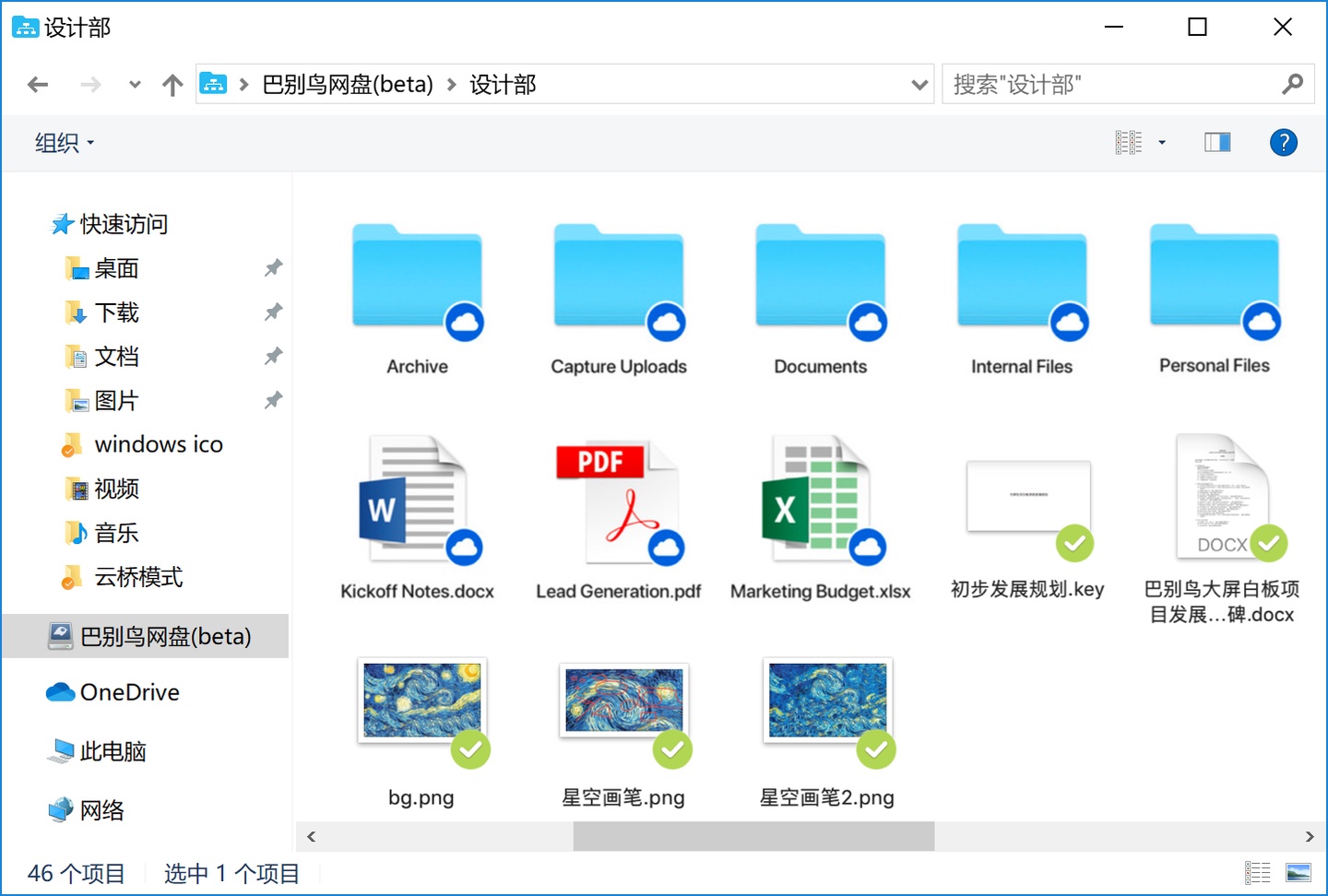
After installing the BabelBird client, there will be a BabelBird mapping disk in the resource manager. After clicking it, you can access all the files that can be accessed within your permissions. The file contents in the mapped disk are not actually on your computer, but are mapped to your computer through the network. You still need to download these files to use them. The advantage of a mapped disk is that it does not occupy the local storage space of your computer, and only the files you use need to be downloaded and cached. At the same time, the disadvantage is that the mapped disk needs to be connected to the network to be used. Since the files inside are all in the cloud, the file icons you see are just shortcuts to the cloud files, so dragging the mapped disk files to the local disk directory is not supported.
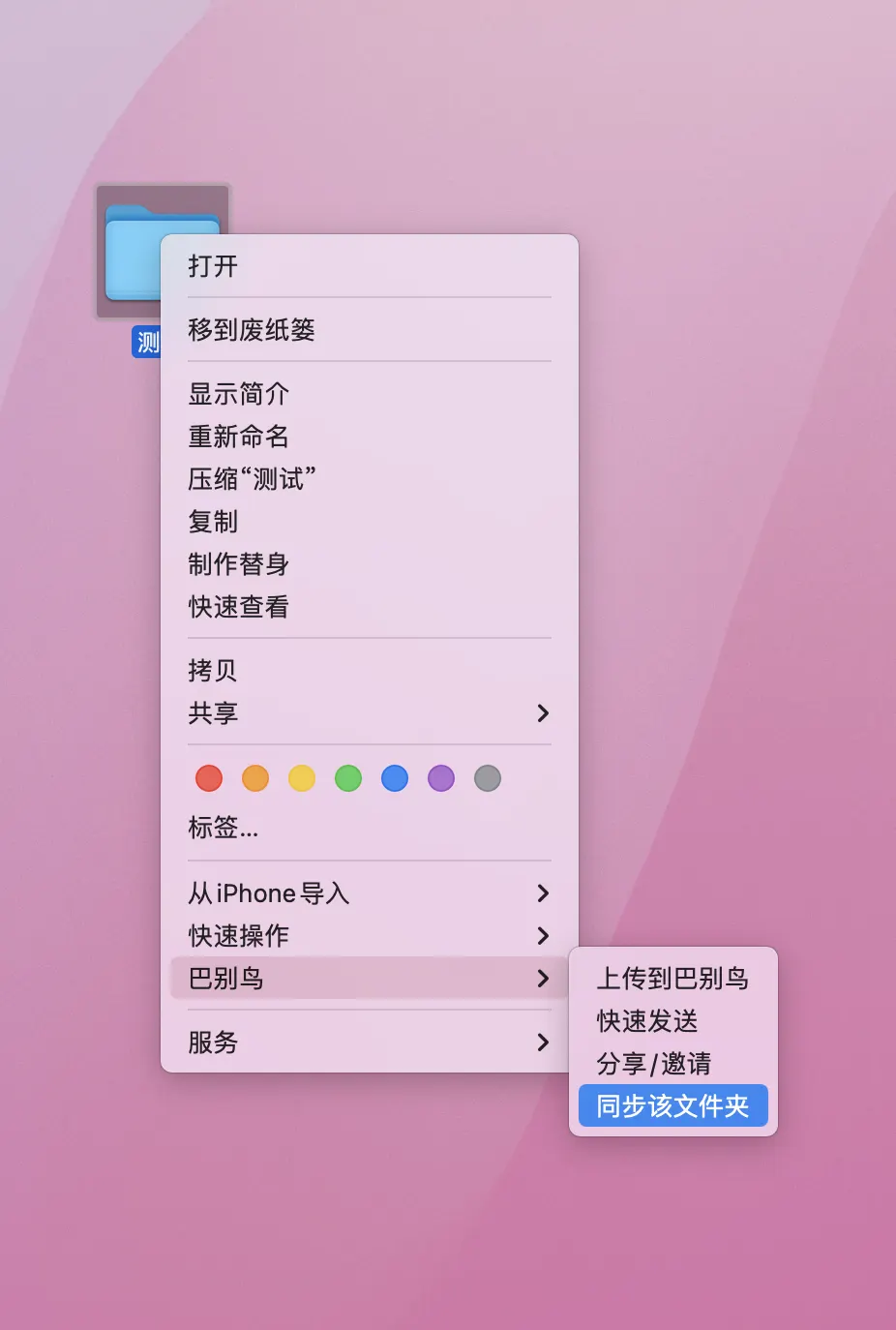
After installing the client, if you select a folder on the local disk, right-click, select BabelBird, and then select Sync to BabelBird. At this time you have created a sync folder. The content in the synchronized folder will be automatically synchronized to the cloud. If the content in the cloud is updated (other people have synchronized this folder to their computer and uploaded files), the content in your folder will also be updated. The advantage of synchronization is that after synchronization, the files are downloaded locally and you can directly perform various operations. You can use and access the synchronization folder even without a network. If you are connected to the network, the updated content will be automatically synchronized. The disadvantage of synchronization is that it takes up local hard disk space, and because files need to be downloaded and updated, the real-time performance of synchronization is not as good as that of the mapped disk.
52. Why can't I synchronize newly added files or not synchronize the latest file versions?
What you are synchronizing should be files within the department. There are several possibilities:
You do not have file upload permission in the synchronized folder
The file you want to synchronize is in a folder you created locally, but you do not have permission to create a new folder.
The file you want to synchronize is set to a file type that does not require synchronization
The file type you want to synchronize is in the file blacklist and is not allowed to be uploaded.
The size of the file you want to synchronize exceeds the maximum limit for a single file that can be uploaded
The total size of the files you want to synchronize exceeds the department space limit
The files you want to synchronize are file types that are prohibited from synchronization by BabelBird, such as files with tmp, swp, and lock as suffixes.
If it is determined that none of the above reasons are the cause, you can try the following solutions one by one:
Rename the files that have not been updated, and then change them back to their original names after the synchronization is successful.
Move unsynchronized files out of the sync folder and wait until the synchronization status shows synchronized before moving them in.
Find the synchronized items in the synchronization management, right-click, and reset synchronization. Restart client
If you still can't solve it, please contact our customer service staff.
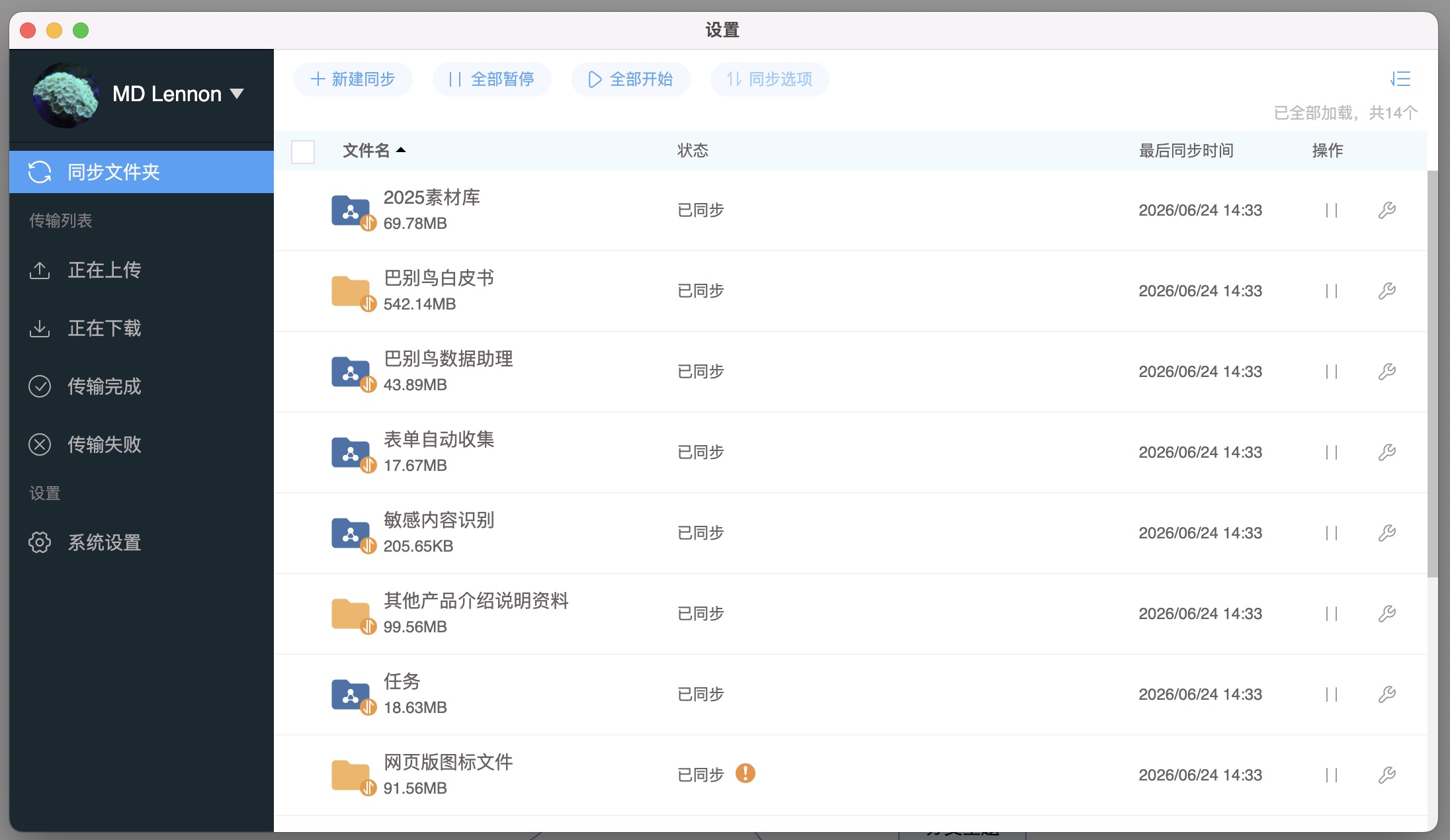
53. Why do I get the message that several files were not synchronized successfully during synchronization?
When synchronizing many files, occasionally some files will prompt "Unsuccessful synchronization". Generally, the files that cannot be successfully synchronized fall into the following categories:
The file name of this file has special characters or is irregular. In order for BabelBird to be compatible with MAC, Linux, and Windows file systems at the same time, the file name rules need to be compatible with these systems. This results in files whose file names contain special characters, Chinese commas and other characters being unable to be synchronized. Solution: Modify the file name of the file that needs to be synchronized.
The file is corrupted or the hash check fails. BabelBird has an instant transfer module, which will analyze the hash code of the file when the file is uploaded. Due to damage, format and other reasons, the hash code of some files cannot be read, causing synchronization failure. Solution: Re-edit or export the file or upload the file into a zip package.
The file is too large. BabelBird can stably support the upload of a single file up to 8G. When uploading files exceeding this size, 100% success rate cannot be guaranteed. Solution: Change the file to a smaller size or retry synchronization multiple times.
The file is occupied by some application. Sometimes, certain applications restrict files from being read or copied, which can cause synchronization to fail. Solution: Restart the operating system and synchronize again, or find the application that opens the file and close it.
The file is in the process of being written. Synchronization may also fail while the file is being written. Solution: Wait for the file to be saved before synchronizing or uploading it.
The files are on other network drives. Synchronizing files that are not local can easily cause network errors, causing synchronization to fail or become unresponsive. Solution: Copy the file or folder to the local disk and then synchronize it.
Use VPN to circumvent firewalls or network problems. VPN circumvention can easily cause the computer's local clock to be abnormal. Clock abnormalities can lead to synchronization failure or unknown problems. Solution: If the clock and server time do not match, please adjust the time and time zone on the computer and use the time in the time zone of the server. If it is not a clock problem, it may be a network abnormality caused by the VPN. Turn off the VPN, disconnect the network connection and try again (turn off the network card or wifi and then turn it on).
54. What are the permissions related to synchronization?
If you are in a department and want to synchronize a folder in the department files, the permissions related to synchronization are:
Upload files (synchronously upload local files)
Download your own files
Download other people's files
Move your own files
Move someone else's files
Delete your own files
Delete other people's files
Create folder Only people with the above roles can perform complete synchronization. If a certain permission is missing, a certain operation during synchronization is missing.
At the same time, if the synchronized folder has been set up with "File Access Control", the settings in File Access Control will prevail.
55. I deleted a file locally when synchronizing files. Will it still be there in the cloud?
If you have full editing permissions (upload, download, delete) in the cloud sync folder, and you delete a file locally or move a file outside the sync folder, the corresponding file in the cloud sync folder will also be deleted.
But this deleted file will be in BabelBird's Recycle Bin, where it can be found and restored.
56. During synchronization, if I delete a file in the cloud, will it still be there locally?
If you have full editing permissions (upload, download, delete) in the cloud sync folder, and you delete a file in the cloud or move a file outside the sync folder, the corresponding file in the local sync folder will also be deleted.
But the deleted file will be in BabelBird's recycle bin and can be restored.
57. Can several people in our department synchronize a certain folder at the same time?
Yes, BabelBird supports multiple people to synchronize the same cloud folder. At the same time, if multiple users synchronizing the same folder have the same permissions, the files in the local synchronized folders of several users will be consistent.
58. If I delete a file on the mapped disk, will it still be there in the cloud?
If you have the permission to delete files and you delete a file in the mapped disk, the cloud will delete it in real time. But there will be in the recycle bin.
If you do not have permission to delete the file, the system will prompt you that you do not have permission to delete the file.
59. Why can’t I drag files on my mapped disk to WeChat and send them?
In windows mapped disk, due to resource manager limitations, only cached files can be dragged.
In the Mac mapped disk, files that are not cached can also be dragged into WeChat, where they will be automatically cached and sent. However, since WeChat's window capture does not support dragging network files, if the file exceeds the 10MB WeChat file sending limit, there is a high probability that unpredictable problems will occur (window deadlock). This is difficult to solve if Mac WeChat does not support it, and it is also a bug of WeChat. Apple iCloud simply does not support dragging uncached files to WeChat to avoid this problem.
60. Why can’t I find my mapping disk?
Because the mapped disk needs to obtain the underlying permissions of the operating system, it is easily restricted by the operating system and cannot be accessed. The current version has solved this problem very well, but under some anti-virus software or operating systems, problems such as the mapped disk cannot be found and the file icons in the mapped disk are incorrectly displayed may still occur.
Solution: Put the BabelBird client into the whitelist of the firewall or anti-virus software, uninstall and reinstall the BabelBird client with operating system administrator rights, follow the prompts and allow it to be blocked by the anti-virus software or firewall.
61. Why can some files in my synchronized folder be synchronized, but some cannot?
If some files in a synchronized folder cannot be synchronized, there are generally the following possibilities:
You do not have the permission to download these files and cannot synchronize these files to the local computer (two permissions to download your own files and download other people's files)
You do not have upload permissions for the sync folder or some folders in the sync folder. You cannot synchronize edited content and new files to the cloud.
You do not have "Create Folder" permission in the department, and there are newly created folders in the local folder you want to synchronize.
The size of the files you synchronize exceeds the single file upload size limit (please consult the administrator or BabelBird customer service for the single file size limit)
Some file types are set as file types that do not require synchronization
Some file types are in the file blacklist and are not allowed to be uploaded.
If it is determined that none of the above reasons are the cause, you can try the following solutions one by one:
Rename the files that have not been updated, and then change them back to their original names after the synchronization is successful.
Move unsynchronized files out of the sync folder and wait until the synchronization status shows synchronized before moving them in.
Find the synchronized items in the synchronization management, right-click, and reset synchronization.
Restart client
If you still can't solve it, please contact our customer service staff.
62. Why can I edit some files in the department but not others?
You do not have permission to edit the file. It is possible that your role in the department does not have the permission to "edit other people's files" and the creator of this file is not you. Or the file has file permission controls that prohibit editing. Files cannot be edited while locked. If the "File Owner" mode is turned on, non-persons in charge cannot edit the file.
63. I am a super administrator, why can’t I see the dynamics of some departments?
The super administrator can see the department folders of the entire company for management purposes, but the super administrator cannot see the dynamics of departments that he has not joined. In order to prevent a large amount of information harassment, BabelBird is set to push only the updates of the department, project, and sharing of the members. If the super administrator wants to see the dynamics of a certain department, he can add himself to that department.
64. I am a super administrator, why do files appear in the Recycle Bin after I empty it?
BabelBird's recycling bin is a multi-level recycling bin. In order to facilitate management, it is managed uniformly in the "Recycle Bin" at the front desk. The setting of multi-level recycle bin is that department files deleted by department members can also be seen in the recycle bin of department managers and super administrators. Department files deleted by the department manager also exist in the super administrator's recycle bin. This mechanism can avoid the vicious event of "deleting the database and running away" to the greatest extent. However, because the super administrator also has a corresponding role in the department, and may even be the project manager of a certain department at the same time, this will cause a phenomenon: the super administrator empties the recycle bin (as a department member or department manager), and the files disappear, but if refreshed again, there will still be these files in the recycle bin (as seen by the super administrator). Therefore, the super administrator needs to operate twice to completely delete a department file. This setting is indeed a bit unsatisfactory. We have also noticed this problem and will correct it in future iterations.