
Encrypted Folder
Encrypted folders are special password-protected folders inside shared enterprise drive spaces. They are suitable for unpublished files, private materials, contracts, HR documents, finance files, R&D data or project files that should not be broadly visible yet.
Positioning
Encrypted folders do not replace BabelBird’s permission system. They add an extra “password required” layer on top of existing permissions. Even if a user can see the folder through a department, project or share, the password is still required to view its contents.
Typical use cases:
- A shared department space contains a subset of files that only password holders should access.
- Project materials are not yet released and need temporary protection.
- Private files need a file-vault style folder to reduce accidental access or misconfigured permissions.
- Files inside an encrypted folder are shared externally, but recipients still need the folder password.
How To Create
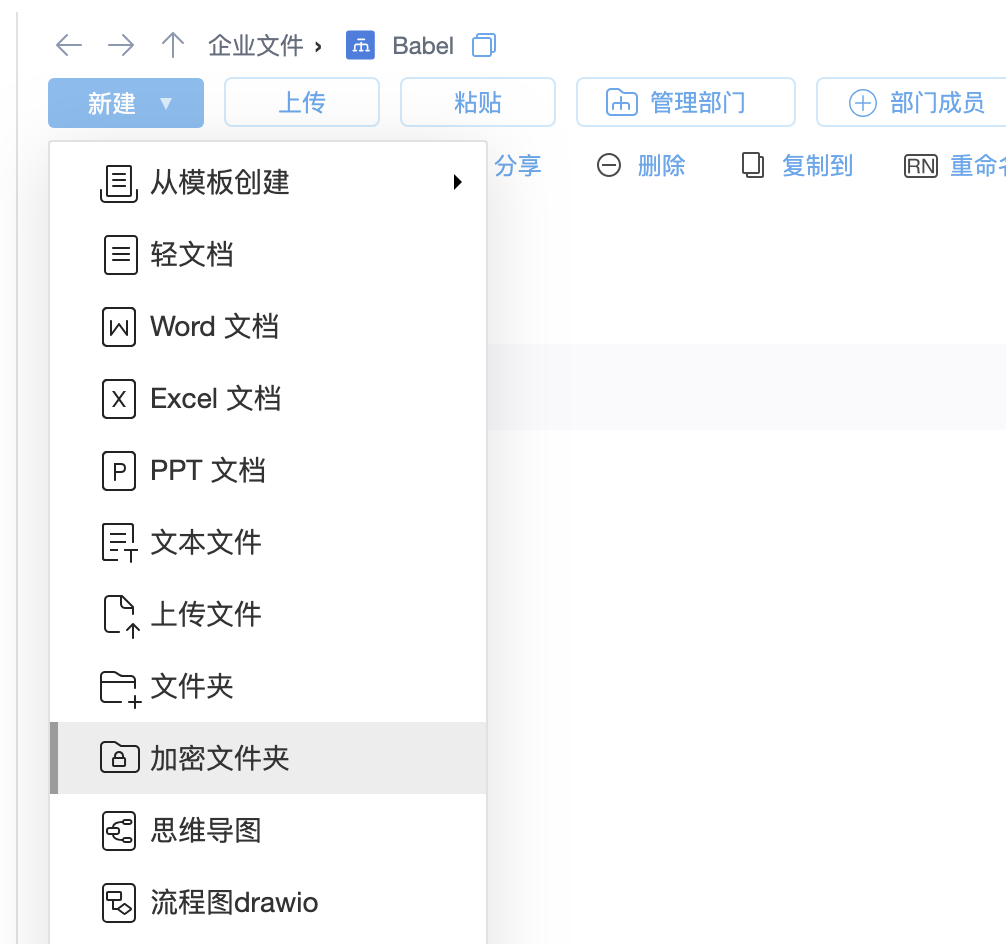
- Open the target directory and click “New”.
- Choose “Encrypted Folder”.
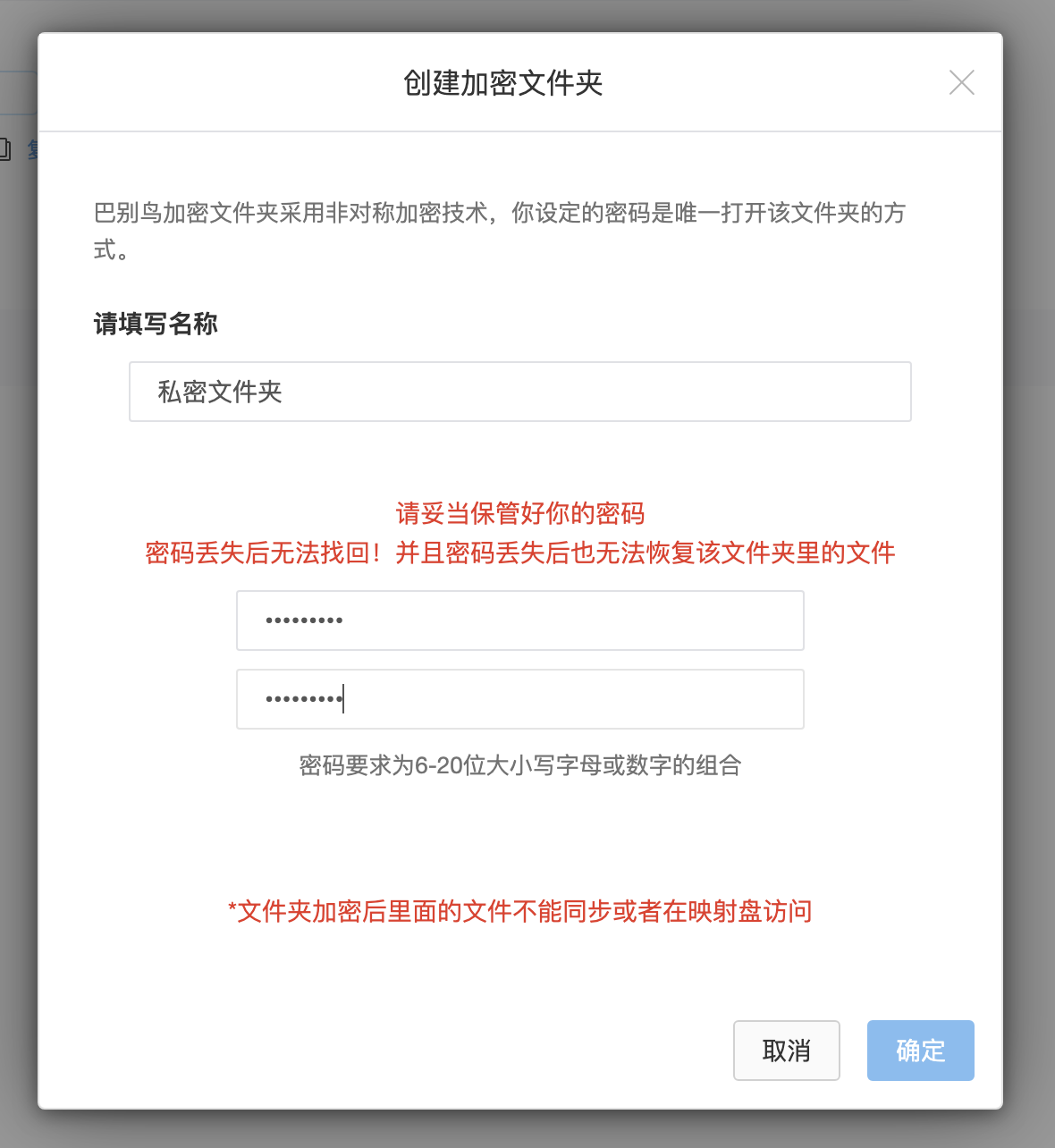
- Enter the folder name and password.
- Save it. The file list will show a folder with a lock indicator.
Access
Opening the encrypted folder requires the password. After successful verification, users can upload, download, create, preview, edit, share and use normal file functions inside the folder, subject to their original permissions, file access control, sharing permissions and administrator settings.

Password Security
Encrypted folders use anonymous encryption. If the password is lost, it cannot be recovered. Operators and engineers cannot decrypt or restore it. If the password is lost, the folder usually cannot be opened and must be deleted and recreated.
Usage notes:
- Do not store the password inside the same encrypted folder.
- Do not distribute the password in public chats or uncontrolled documents.
- For long-term sensitive data, combine encrypted folders with department permissions, file access control, watermarks, audit logs and classification policies.
- When an employee leaves, a project ends or materials become public, clean up the password scope and migrate, archive or delete files according to company policy.
Sharing Behavior
Even if a file inside an encrypted folder is shared, recipients still need the encrypted folder password. Sharing permissions control whether the recipient may view, download, edit, comment or continue sharing; the encrypted folder password controls entry into the protected space.
Combined Security Controls
| Feature | Role |
|---|---|
| File access control | Assign permissions to members, roles or project members |
| Watermark | Add traceable marks during preview, download or output |
| Sensitive content recognition | Identify and mark files that may contain sensitive content |
| Audit logs | Record access, download, sharing and permission changes |
| IP policy and Mac binding | Restrict account use by network or device |
| Classification and security policy | Apply stronger confidentiality requirements to departments or files |