
FAQ: Permissions, departments and projects
The following questions cover common operations, permissions, collaboration and troubleshooting scenarios when users use BabelBird Enterprise Drive.
19. How to use online editing?
BabelBird supports multi-person online editing of office documents. Whether it is word, excel, ppt or wps documents, they can be edited online on BabelBird.
The method of use is very simple. Create or upload an office file, right-click on the file and select Online Editing to start online editing.
If you cannot edit online, it may be due to the following situations:
There is no online edit button. Please check if you have edit permissions for the file. Or whether the BabelBird account you are using has online editing authorization enabled.
I clicked online editing but no response. If you use a browser to access BabelBird, please check whether the online editing window is blocked by the browser. Some browsers will block new windows. Usually, this type of browser will have a prompt that new windows are blocked at the far right of the address bar. Just click to open it.
Prompt file is locked. In this case, there is often a user editing the document using the client.
20. How to collaboratively edit online with multiple people?
BabelBird supports multi-person online editing of office documents. Whether it is word, excel, ppt or wps documents, they can be edited online on BabelBird.
Create or upload an office document that needs to be edited by multiple people, and share it with the members who need to collaborate (if it is a department file or project file, and the collaborators are also in the corresponding department or project, they can see the document without sharing). Be sure to give the other party editing permissions.
At this time, everyone can use online editing to perform collaborative editing.
21. Why do documents edited by multiple people still have the version before editing (old version) after downloading?
In order to ensure the integrity of online editing documents, Babel Online Editing has a system setting: it requires waiting for all editors to exit for 10 seconds before saving the collaboratively edited document as the latest version. If you exit in the middle of collaborative editing while there are other collaborators editing at this time, the version of the downloaded document will be the version before the online editing.
Therefore, if you want to download the latest version, you need to ensure that all collaborators have logged out and closed the online editing interface. (The ID of the member being edited at the moment will be displayed in the upper right corner of the online editing interface)
If you want to save the latest version during the editing process, you can also click File - Download As - select the format you want to download directly in the online editing interface. This way you download the latest version. (The downloader needs to have download permission for the file) The online editing permissions and downloading permissions of BabelBird can be separated to meet the special needs of some users who need to be able to edit online but not download.
22. How to use file access control? How to control access permissions of a file?
File access control can be turned on for Babel's project files/folders and department files/folders to limit specific project members or department members' access to the files/folders.
File access control is only for members within the department. If you need people from other departments to access the file, please use the sharing function.
File access control takes precedence over a member's department role permissions or project member permissions. For example: a member has editing permissions on a certain file in the department, but if the member's permissions on the file are set to read-only through the file access control, then the member will only have read-only permissions on the file.
File access control is also effective for folders. If file access control is set for a folder, the members whose access control is set will also follow the permissions set by the file access control for all files in the folder, including subfolders.
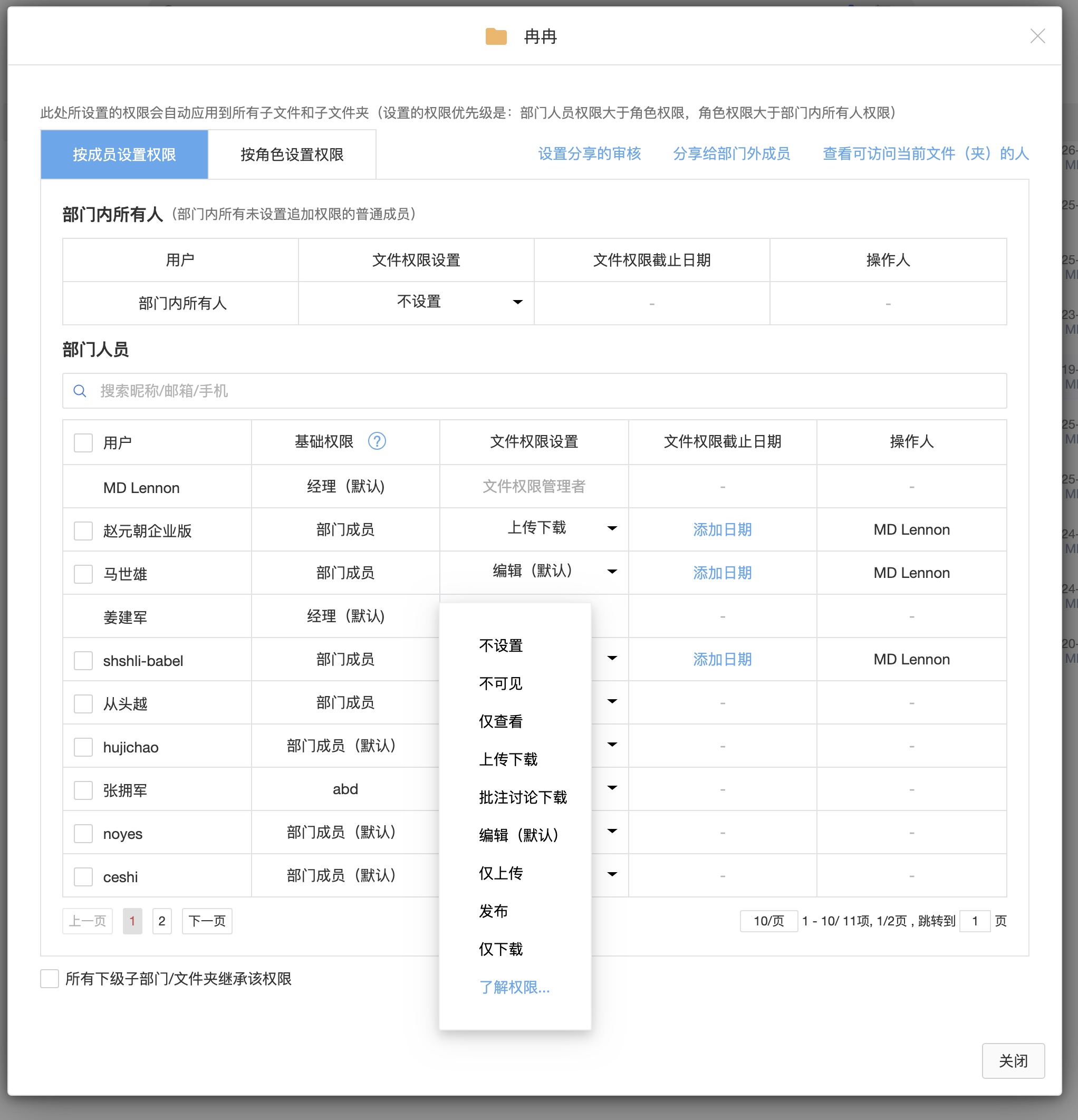
Right-click on the project file (folder) and department file (folder) and select "File Access Control" to turn on file access control for the file. There is a list of members who can access the file in the file access control interface. Just select the permissions you want to control for specific members. You can also set the validity period of access control. After the validity period, access control will become invalid.
At the same time, department files can also set a role's access rights to specific files (folders) through file access control. Right-click "File Access Control" on the department file (folder) and select the "Role Permission Settings" column at the top of the file access control interface to set file access control for a certain role.
23. How to customize sharing optional permissions?
BabelBird has two permission systems that can be used in conjunction with each other. One is the "role permissions" that determines the use permissions within the department, and the other is the "file permissions" that are used to control sharing, projects, and file permissions.
Both "role permissions" and "file permissions" can be customized in the background, and specific permission types and permission names can be selected.
Unify management and customization in the enterprise console - permission management. In the permission management column, select "Department Permission List" to manage role permissions, and select "File Permission List" to manage file permissions.
The customized permissions in the file permission list correspond to the optional permissions when sharing files. (At the same time, the permissions controlled by project member permissions and file permissions are also common) For example: click the "Customize Permissions" button in the file permissions list, create a new permission, name it "Intern" and then check the specific permissions you want to give to interns (such as preview, upload, download). After clicking OK, a new permission called "Intern" will be added to the file permissions list. At the same time, when sharing files, adding members to projects, and controlling file permissions, the permission "Intern" can also be selected in the drop-down permission selection box.
24. How to control the permissions of department members?
You can change the member's permissions by changing the member's role in member management.
If you want to control the access permissions of a specific file (folder), right-click on the file (folder) and select "File Access Control" and then find the member whose permissions you want to control, pull down and select the permissions to give him.
25. How can department files be seen by members of other departments?
Use the sharing feature to invite other department members to access the file (folder). Right-click on the file (folder) that you want to show to other department members, select Share - select the member you want to share with (or enter the member account or email address) in the invite share area, pull down and select to give him permission to access the file (folder) - click Send. After the invitation is sent successfully, the invitee can receive the invitation notification, and the file (folder) can also be seen in the "Sharing I Joined" column on the left side of the invitee's BabelBird.
26. How does the department manager manage the department?
Find the department folder in the enterprise file column, right-click and select "Department Management" to open the department management interface. (Only people with the "Department File Management" role permission can see the "Department Management" option)
27. How to know which department files have been shared?
The department manager (a person with the "Department File Management" role permission) right-clicks on the department folder and selects "Department Management". Find "Department Shared File Statistics" in Department Management and click "Open Shared File List" to view a list of all shared files in the department.
You can also click the blue button on the path to open it through the quick menu:
28. What is the file confidentiality level (security level)?
The file confidentiality level (security level) can be set for BabelBird's department files, and the system limits the file's usage scope, sharing method, and permissions based on the file's security level. Suitable for setting files with relatively high security requirements.
BabelBird's document security levels are divided into four levels: public documents, internal documents, restricted documents, and confidential documents. The default files are public files. Right-click on the file - More options - Security level to change the security level of the file.
Files with different security levels are handled as follows: Confidential files are not visible to anyone in the department except the creator, project leader, file leader and department manager by default. Sharing the file must be authorized by the security officer
This file is restricted and can only be read by general personnel. Sharing this file must be authorized by your superior.
Internal documents, sharing this document with people outside the department must be authorized by the superior supervisor
The above three types of files do not support link sharing and only support invitation sharing.
Confidential files, restricted files, general personnel cannot move/copy/upload new versions/download/rename/view versions, only superior supervisors and personnel with department file management permissions can
29. How to view the department’s access log?
Department administrators (roles with "Department File Management" permissions) can view the file access logs of the entire department. There are two ways to view them.
Open the department folder. There is a small blue icon in front of the department name in the path bar (breadcrumbs) at the top of the department folder. Click the icon to select file access statistics, and select "Access Log" at the top of the pop-up window.
Find the department folder in the enterprise file root directory, right-click, select Department Management, find department file usage management - file access statistics, and click "Open File Access Log"
There is an "Export Report" button in the upper right corner of the access log, which can export the log to an excel file.
30. How to check the usage status of department members?
Department administrators (roles with "Department File Management" permissions) can view the use of network disks by members of the entire department. There are two ways to view them.
Open the department folder. There is a small blue icon in front of the department name in the path bar (breadcrumbs) at the top of the department folder. Click the icon to select file access statistics.
Find the department folder in the enterprise file root directory, right-click, select Department Management, find department file usage management - member usage, and click "Open Usage"
31. What does the approval process do?
Babel supports document review and approval, and the ultimate goal of review and approval is to finalize the document. The file approval process can be configured in the Enterprise Console - File Configuration - Approval Management to become a pre-made approval process. Department roles with department file management rights can also set the approval process used when department members initiate approval in the department management column. There are 4 setting methods: the approval process can be freely defined (department members can customize the approvers of the approval process when they start approval), and all pre-made approval processes can be selected process (department members can choose to preset all approval processes in the management backend when they start approval), limit specific approval processes (select a few approval processes to be used by the department in the preset processes in the management backend), and have the same restrictions as the parent department (use the approval process settings used by the upper-level department). Babel document approval has the following characteristics:
Department members can initiate approval by right-clicking on the document to be approved - More Options - Open Approval.
The finalized approval document can be exported to the approval report. Approvals can be managed in the "My Approvals" column on the left sidebar.
The status of the document that has passed the approval will change to "Finalized". The finalized document can be updated to the "To Be Started" status, and the approval can be started again.
Right-click on multiple files and select Open Approval to approve multiple files at the same time.
It is allowed to invite external members to approve documents. When filling in the approver, just enter the email or mobile phone number of the external member.
32. What is the difference between upload permission and upload-only permission?
In addition to uploading a new file, uploading also means that you can upload a new version over the original file. Babel's "overwriting" does not destroy the old file, but adds a new version to the old file as the current version. So the upload permission includes the permission to upload new versions.
In BabelBird's permission system, uploading files includes the meaning of uploading new versions of other people's files. For example, if a share created by someone else gives you upload permission, it means that in addition to uploading files, you can also upload new versions (edit) of other people's files.
Only upload permission means that you can only upload your own files, which means that you can upload new files and upload new versions of your own files, but you do not have permission to upload new versions of files uploaded by others (you cannot edit other people's files).
33. Why can’t I see the files uploaded by others?
Your department role does not have permission to view files uploaded by others. You can contact your department manager to change your role.