
FAQ: Preview, online editing, search and tags
The following questions cover common operations, permissions, collaboration and troubleshooting scenarios when users use BabelBird Enterprise Drive.
81. Why can’t I play animation when previewing PPT?
BabelBird's PPT is presented in the form of a page and does not support the built-in animation and link of PPT.
If you want to play PPT animation, you can use the "online editing" function to open the PPT and play it (you need to purchase the online editing module), or click the edit button of the file after installing the client.
82. Why can’t BabelBird play some video files?
BabelBird only supports the playback of video and audio files according to Html5 rules, generally H264 video encoding and AAC audio encoding Mp4 files. If the video encoding does not meet the requirements, it cannot be played under H5. However, it can be played after transcoding using transcoding software such as Format Factory.
The specific playable file types and browser corresponding rules are as follows:
83. What should I do if the file is accidentally deleted?
You can recover accidentally deleted files in the recycle bin. The default retention period of the recycle bin is 60 days. It can also be set by the super administrator in the enterprise console. The setting range can be from 1 day to 999 days.
If the file is not in the Recycle Bin, it means that the file has been completely deleted.
84. My colleague has resigned, what should I do with his files?
Babel supports one-click handover. Super administrators can use the one-click handover function to handle the file handover of departing colleagues.
Find the resigned colleague in the department member list (right-click on the department folder, go to department management) or the member list of the enterprise console.
Click on the name to open the member management interface
In the transfer file ownership column, click the "Transfer to" button
Select a transferee in the list and click OK to complete the transfer.
After the files are transferred, the permissions and sharing relationships of the departing colleagues on the corresponding files/folders will be transferred to the transferee. This operation is irreversible.
85. There are too many department files. I have uploaded a new file and want a colleague to take a look. How can I make it simple?
You can use the reminder to follow or the @ function.
Right-click on the file, select the "Remind Attention" button, and select the colleague you want to remind you to pay attention to.
The colleague will receive a reminder notification, and the file will be in the "My Following" list on the left column of the member.
You can also open file comments and @ this colleague in the comments, he will also receive @ notifications.
Remind Follow and @ to only select people who have at least the permission to view the file. If the colleague is not in the list, it means that the colleague does not have access permission to the file. In this case, you can use the invitation sharing form to allow the colleague to read the file.
86. Why does the download folder not respond after a long time when I click to download it?
When using a browser to download a folder on BabelBird, you need to package the folder into a ZIP compressed package on the server and then download it. Packaging takes time, so when you click on a folder to download, you need to wait for a while before the download starts. Moreover, in order to save server resources, Babel strictly limits the conditions for folder downloads: browser downloads are not supported for folders with more than 100 files in the folder or folders with a folder capacity greater than 500MB.
If you need to download a folder, it is recommended to use the Babel client. The client does not need to be packaged and can directly download large folders, and there is no folder size limit.
87. What is the difference between client editing and online editing?
The principle of client-side editing is to cache the files on the network locally on the computer, and call the local application to open the edit. When the editing is completed and saved, it will automatically upload and create a new file version in the cloud. This means:
To prevent version conflicts, the client does not support several users editing the same file at the same time. Therefore, files edited by the client will be automatically locked to prevent others from editing at the same time. Only after one editor has finished and unlocked can other editors continue editing.
Whether the client can edit a file is determined by the computer on which the client is installed. If the computer on which the client is installed has various applications for editing files, theoretically all types of files can be edited using client editing.
Because client-side editing of files uses local programs to call the computing resources of the local computer, it is faster and has a better experience.
The principle of online editing is to directly call the online editing server and open the file for editing in the cloud. This means:
Currently, online editing can support office files (word, excel, ppt), wps files, txt files, markdown files, and km files. However, txt files, markdown files, and km files do not support online editing by multiple people at the same time.
Because it is edited in real time in the cloud, multiple people can edit the same file at the same time, but it is possible for multiple people to edit at the same time and cause layout confusion.
Because you edit in the cloud, many resources need to be cached on the server, which is related to network speed and connection rate, so the speed and experience are not as good as client-side editing.
Online editing does not require local installation of applications, and can be used by any browser that supports the Html5 specification.
88. Why is my online editor so slow to open?
The first time you open an office document for online editing, it will be very slow (because cache files need to be loaded), but the second time you open it in the same browser, it will be much faster. BabelBird uses the office online editing module of Onlyoffice. The main reason why online editing is slow to open is that unlike local editing, online editing needs to transfer files to the cloud editing server and cache the online editor in the browser before editing. The speed of this cache is closely related to the file size and fonts used. The Chinese fonts we commonly use are not small (the average size of a Chinese font package is generally more than 30MB, and an English font package is generally only about 20KB). The more Chinese fonts supported, the slower the cache. This is also a dilemma currently faced by Chinese office online editors. We have optimized the Onlyoffice Chinese font library on BabelBird, but the speed of opening documents is still slower than that of client editing.
89. I want several colleagues to fill in a form together. How should I do this?
You can fill out the form with your colleagues using the online editing feature.
Upload the form that needs to be edited, remind colleagues to pay attention to the form or @colleagues. See FAQ for details: There are too many department files. I have uploaded a new file and want a colleague to take a look. How can I make it simple?
Then right-click on the Excel file you want to edit and select "Online Edit". At this time, the Excel online editor will open, and you can edit the table in it. If other colleagues also edit the form online, there will be a member prompt in the upper right corner of the Excel editor, and you can also see the content edited by the other party in real time.
90. How to view folders in a tree view?
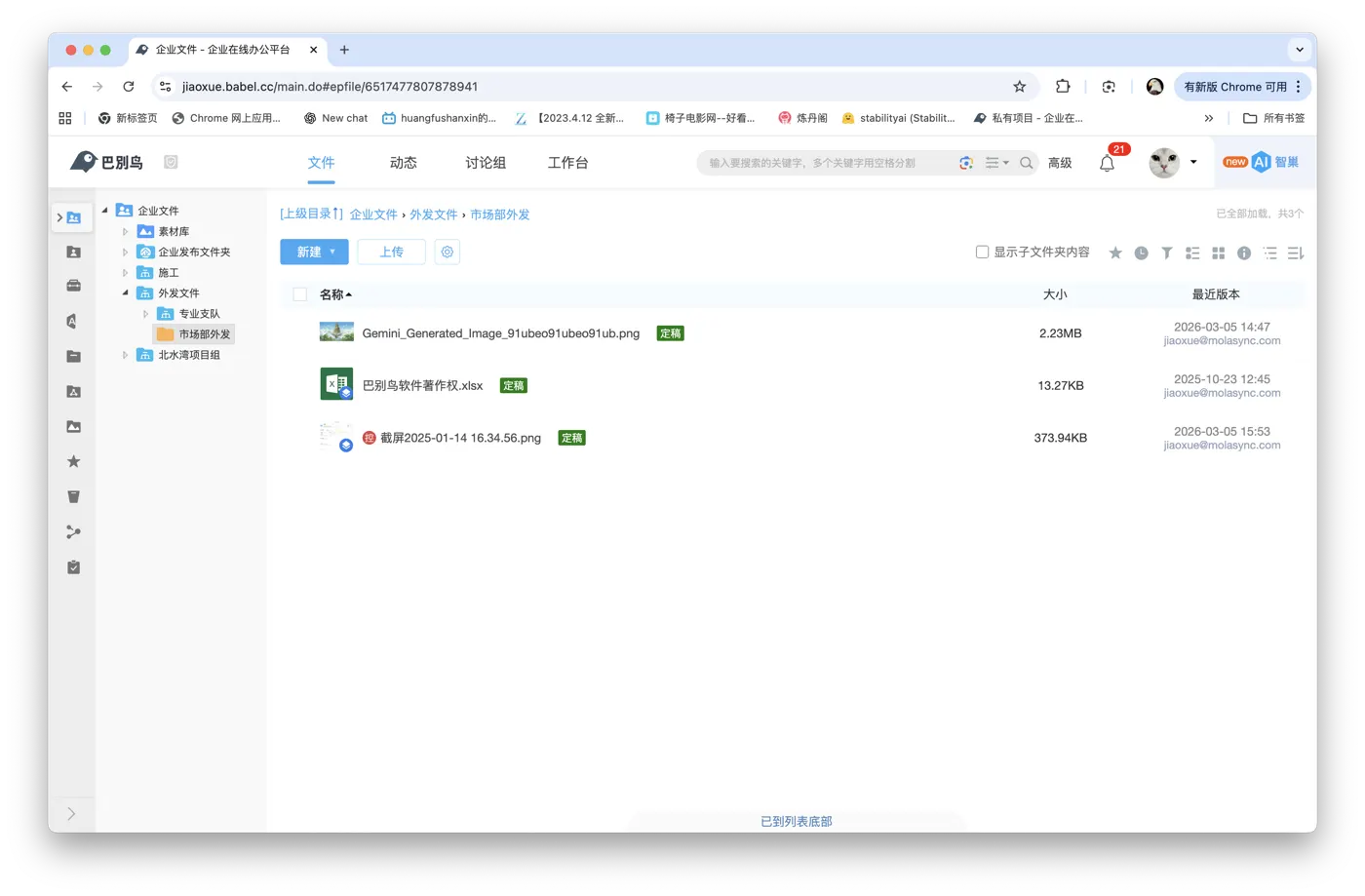
It's easy to view folders in a tree view, just click the "Folder Directory" button in the upper right corner of the folder list.
After clicking this button, a tree directory will be opened to the left of the file list.
91. Can I filter out the files I want to find based on conditions?
Under the folder you want to filter, click the "Filter" button on the toolbar in the upper right corner of the file list.
You can filter the results under the current folder by a combination of tags, file types, file sizes, file update times, and uploading users.
At the same time, the search results obtained using the search function can also be accurately positioned using the filter function.
92. What is a label?
Babel supports tagging any files and folders, and Babel's tags are shared tags, which means that when you add a tag to a file, everyone who can access the file can see and use the tag to query the file. This is very useful in many scenarios. For example, you can use tags to classify materials.
93. How to use the BabelBird tag?
There is an add tag button below the file name in the document list. Click to add tags. If there is no Add Tag button below the file name, it is likely that the concise file list is turned on. You can select the standard list from the settings button on the top right of the file list. Or right-click on the file and "View Details" to add tags in the file details.
BabelBird also supports only allowing the enterprise console to create tags. In the enterprise console - tag management, turn on "Only allow the enterprise console to create and manage tags", so that administrators can create and manage tags in a unified manner. Ordinary members can only select tags from the tag library when adding tags. This setting prevents a large number of synonym tags from being added by different people.
94. How does Babel search for tags?
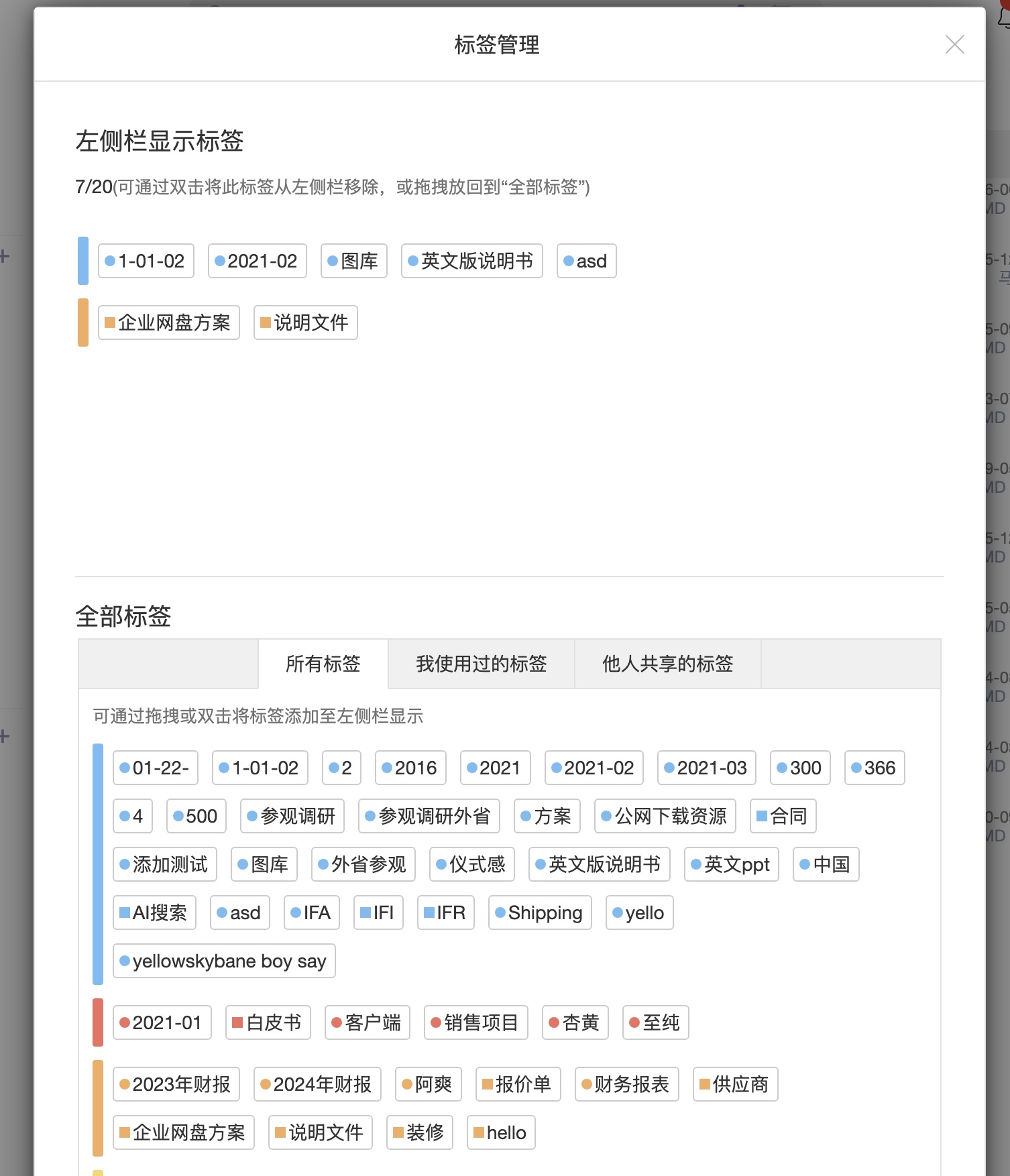
Click the search option button on the far right of the search box and select "Tag Only". At this time, documents matching the tag will be searched.
There is a tag search function in the left column. Click "Tag Settings" in the left column. In the tag management interface, you can select the tags displayed in the left column. After the settings are completed, click the tag in the left column, and the documents with the tag will be displayed on the file list.
95. Does BabelBird support advanced search?
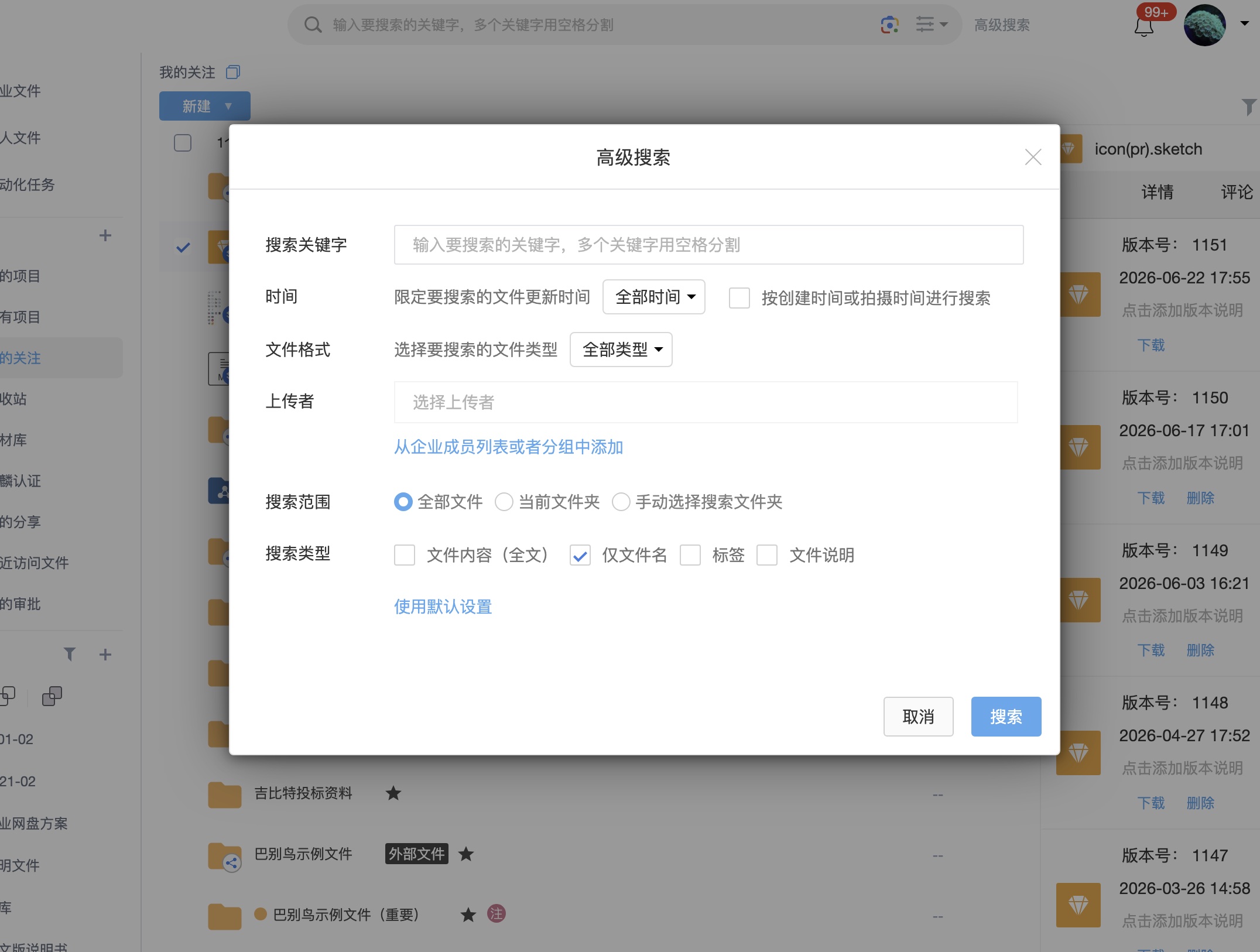
BabelBird supports advanced search. Click the "Advanced Search" button on the right side of the search box to open the advanced search window.
Advanced search supports the following search methods:
Multiple keyword compound search.
Search to limit file update time range.
Photos are searched by the time they were taken.
Search for files of specific types and formats.
Search files uploaded by a specific user.
Supports manual selection of specific folders for search.
Supports search type selection. Such as: full text search + tag search, search file description only.
96. Can I search text inside images?
Yes. BabelBird supports OCR image recognition. After it is enabled, text inside images can participate in search. In private-cloud deployments, scanned PDFs and text inside images embedded in Word, Excel and PowerPoint can also be supported depending on authorization and deployment configuration.
If you only need to extract text from the current image, run OCR in the image previewer or Zhichao AI, then copy the result or export it as a Word document.

97. What is the difference between batch rename and auto rename?
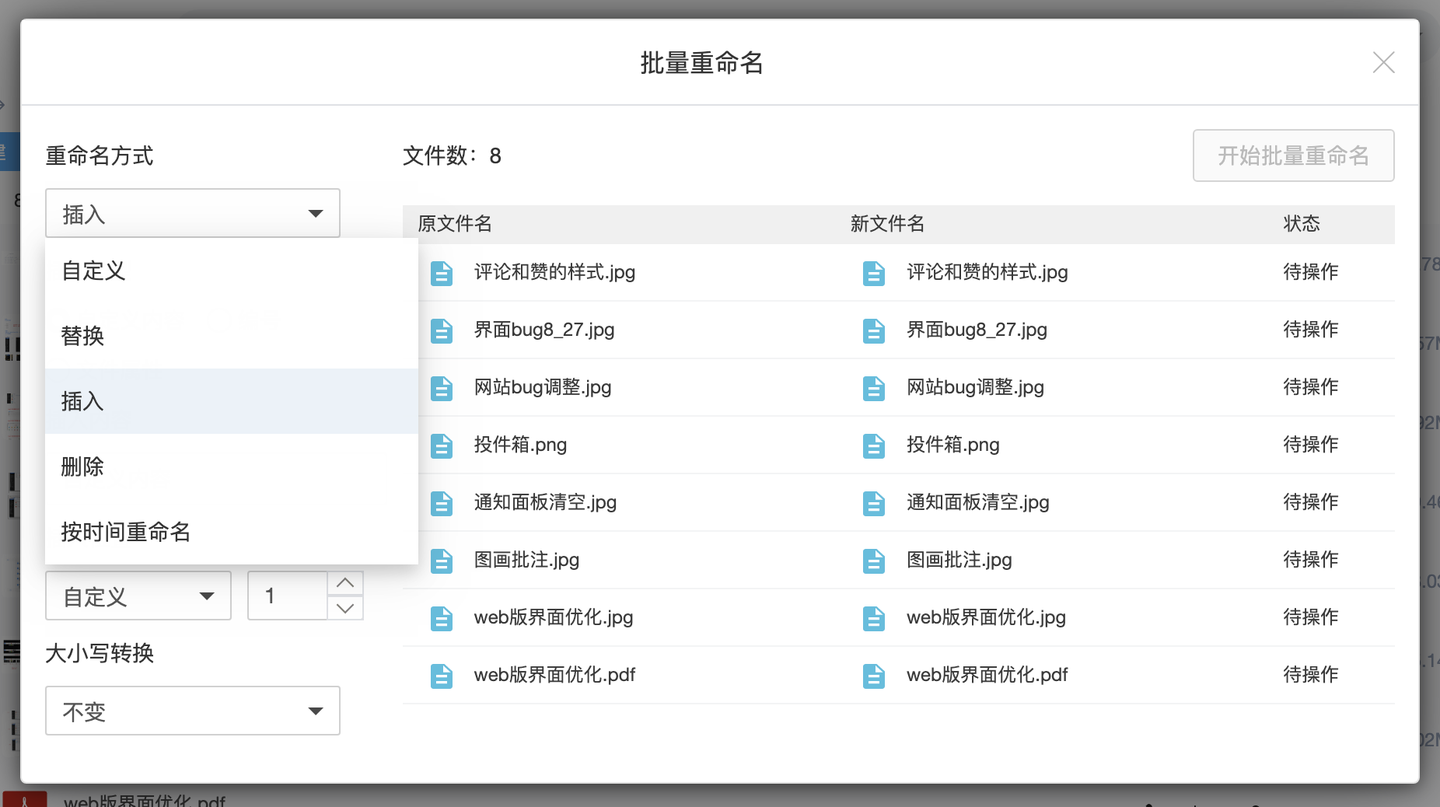
Batch rename is an immediate action on selected existing files. It is suitable for historical cleanup, project photos, scans and migrated files. Preview old/new names before applying the operation and check for duplicates, invalid characters or overly long names.
Auto rename is an automation task configured on a folder. When files enter the folder, the system renames them by rule. It is suited to long-term naming governance.
98. I want to send files on my computer to my colleagues. Is there any good way?
If you have installed the Babel client, it will be quite simple to send local files/folders on your computer to colleagues.
Right-click the file/folder you want to send and find "BabelBird" - "Quickly Send to" in the pop-up menu
At this time, a quick send file selection box will pop up. Select the colleague you want to send it to and click Send.
The colleague will receive a Babel notification in which the file you sent can be downloaded.
Quick Send only supports folders with less than 50 files and a size less than 50MB. If you send files, the maximum file supported is 50MB.