
FAQ: Archives, Comments, Reviews and Subscriptions
The following questions cover common operations, permissions, collaboration and troubleshooting scenarios when users use BabelBird Enterprise Drive.
97. How to manage corporate archives?
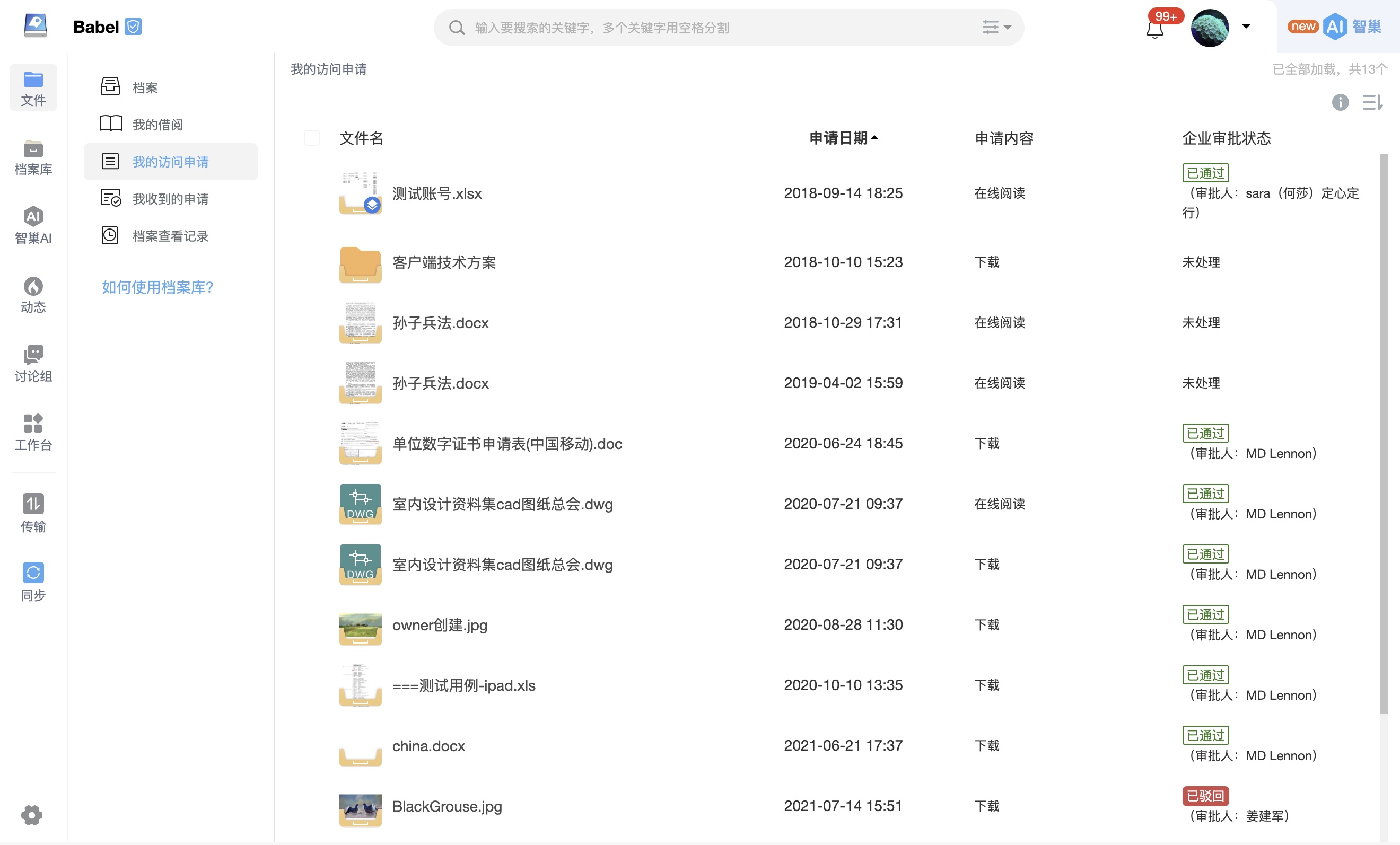
BabelBird has a built-in file management module, and all archived files are stored uniformly in the archives. Super administrators and archivists can create archive (reading room) categories for archived documents. The archiving operation is irreversible, and documents can be renamed, deleted, and borrowed after being archived. Borrowing has three permissions: online reading, downloading, and copying. The rules and properties used by the archive are:
Only "Archive Administrators" and "Super Administrators" can manage enterprise archives, and other personnel cannot manage archives.
The identity of the archive administrator needs to be added by the super administrator under "Archive Administrator" in the enterprise management background.
Archivists and super administrators can create new reading rooms
Archived documents must be moved to the reading room by the archivist or super administrator before other members can borrow them.
People with the "Department File Management" permission can archive files in their department
The archive has an independent "dynamic" module, in which the user's own borrowing history can be queried
The "dynamic" module of file management contains all file borrowing records
Archivists and super administrators can view all archived files without borrowing
There are four open levels of the reading room: public, open to limited departments, borrowing required, and borrowing only to limited departments. The files in the public reading room are visible to everyone, and users can directly view, download, and other operations on the files in the reading room; the public reading rooms in restricted departments are only visible to members of the designated department, and users can directly view, download, and other operations on the files in the reading room; the readers who need to borrow Files in the reading room are visible to everyone, and users need to borrow them before they can view, download, and other operations on the files in the reading room; reading rooms that are restricted to departments that can be borrowed are only visible to members of the designated department, and users need to borrow them before they can view, download, and other operations on the files in the reading room.
98. What types of files can be annotated?
In addition to video and audio files, as well as office files, MD, and TXT, any file that can be opened for preview in BabelBird can be annotated, including pictures, GIF animations, PDFs, 3D models, and CAD files. Babel bird annotations can only be made in the file preview state, and cannot be annotated in the editing interface when the file is being edited.
The privatized system may cause some file types to not be able to use "BabelBird" annotations due to the following modules and settings, but can use annotations inside the viewer. (Such comments will not be notified or dynamically displayed in BabelBird). Such situations are:
Annotations created during the online editing process in Office. Excel selected the table mode viewing module. View Excel as a spreadsheet preview.
The CAD Advanced Display module is selected, using Autodesk's CAD Viewer.
99. How to create annotations?
Only logged in or authenticated users can create annotations. Anonymous users are not currently supported to create annotations.
Web version and client: In preview mode, double-click the left mouse button on the place where you want to annotate to create annotations. Or use the left comment menu to select the corresponding button to create a comment.
Mobile APP: In preview mode, touch (click) where you want to create an annotation, and select "Annotation" to create an annotation. (Mobile APP can only create annotation point annotations)
Mobile H5 or Enterprise WeChat or DingTalk: In preview mode, long press the screen where you want to create, and select the "Create Comment" option in the menu.
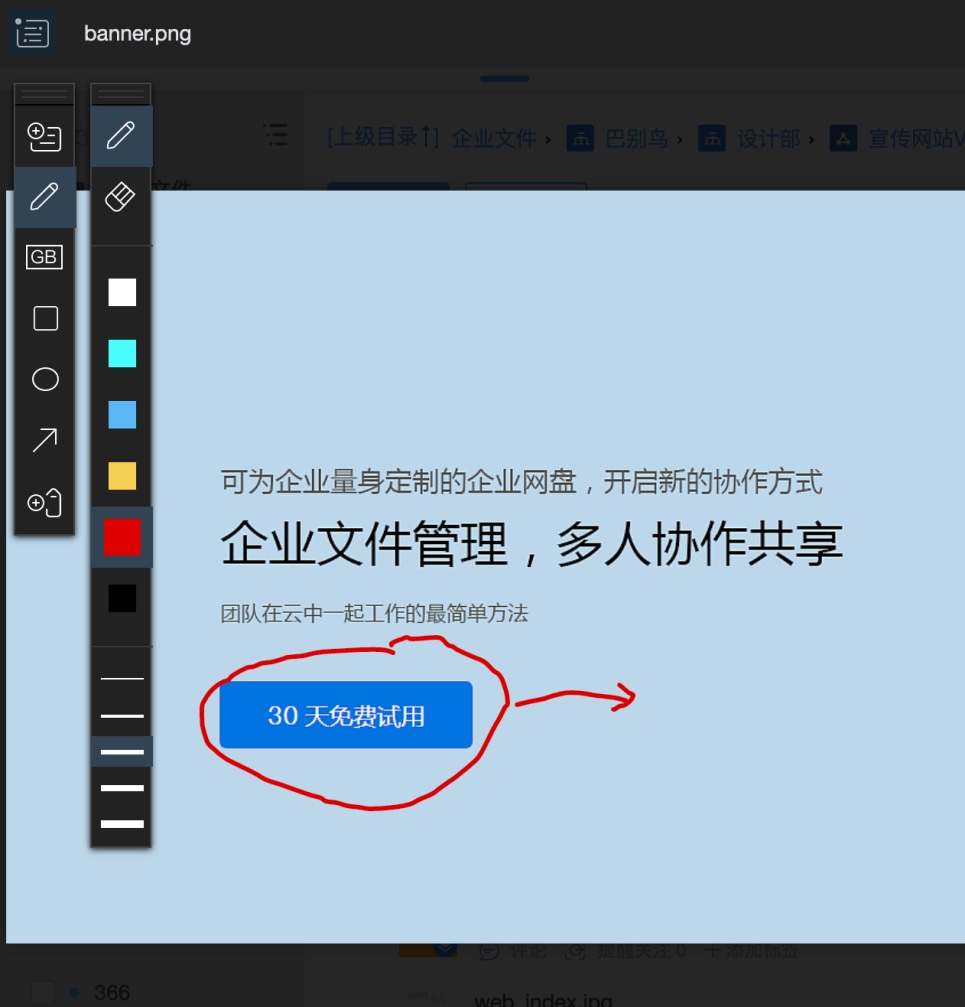
Currently supported annotation types include annotation point annotation, freehand pen, welding mark, graphic annotation, annotation and text annotation.
Annotation point annotation: BabelBird's main annotation type. Double-click the area in the preview where you want to create an annotation to create it. Each comment point is equivalent to a discussion area, and responses can also be created and browsed on mobile APPs and H5 pages.
Hand-drawn pen: You can hand-draw circles on the preview file, and other collaborators can see the hand-drawn content in real time. It only supports creation on web pages and clients, and can only be browsed on mobile APPs.
Welding marks: International welding marks can be inserted and edited on the preview file. It only supports creation on the web page and client, and can only be browsed on the mobile APP.
Graphical annotation: Use graphic frames to select areas and create annotation points. Annotation points can be discussed like standard annotation points. They are only supported on web pages and clients, and can only be browsed and replied on the mobile APP.
Annotation: Create a text annotation or description on the preview file. Reply and discussion are not allowed. The annotation is a directly displayed text description, which can be created on both mobile APP and H5.
Text annotation: You can select a piece of text and create a comment area to support discussion. At the same time, you can also copy the selected text, which is only supported on web pages and clients, and can only be browsed and replied on the mobile APP.
100. How to delete comments?
Only those with the permission to delete comments can delete comments.
For comments on department files: People with department file management permissions (department managers), super administrators, and comment creators (the permission to delete their own comments is turned on in the role) can delete comments.
For comments on personal files: The file owner and the creator of the comment can delete the comment.
The deletion method is as follows:
Annotation point annotation:
Web or client delete comments in comment list Open the comment on the web or client and select the delete button to delete it.
Press and hold the comment point on the APP. When the delete button appears, click delete.
Freehand pen:
Delete from the hand-drawn list in the upper right corner of the web or client in preview mode.
Click to display the handwriting list - move the mouse to the item you want to delete in the list - click Delete when the delete button appears.
Welding marks:
Right-click on the mark on the Web or client, a delete button will appear, click Delete.
Annotation:
Right-click the annotation on the Web or client, and a delete button will appear. Click Delete.
Long press the mark on the APP, click delete when the delete button appears.
Text annotation:
Open the text comment on the web or client and select the delete button to delete it.
101. How to reply to comments?
After someone creates a comment in a document, if you have access to the document and have permission to view comments. You will receive a notification that the document has been commented. At the same time, in the file list, there will also be a red dot in front of the icon of the document with new comments. You can reply to the comments in two ways:
Enter the document to view comments and reply. Click the file name on the dynamic message to enter the document. Click the word comment to enter the document and open the comment. Just reply directly after opening the comment.
If you know what the other person's comment refers to and want to answer immediately, you can directly click the "Reply" button under the comment in the dynamic to reply to the comment directly. No need to open the document.
102. I uploaded a new version of the document, but the comments are missing?
BabelBird's comments follow the document version, which means that when someone uploads a new version of the document and previews the content of the new version, the comments of the old version will not be visible. But as long as this old version still exists, you can still see the annotations of the old version when viewing the old version through the "Version Management" column. Or open the comment list and view all versions of comment records in the comment list. And when you click on a comment in the comment list, it will automatically jump to the old version.
103. How do I view comments from older versions?
Click the annotation list in the upper left corner of the preview area, and you can view old versions of annotations in the list.
After the comment list is expanded, you can see all comments from the historical version.
Clicking on an annotation of a historical version will automatically open the version where the annotation is located and the annotation location for display. After the annotation is opened, the old version of the annotation can also be replied to, and there will also be a reply notification in the dynamic.
If you switch to the old version in file version management, you can also view the comments of the old version.
104. If the file version is deleted, will the comments be deleted?
meeting. Because comments follow the file version, the comment information is also part of the file version information. If the file version is deleted, the comments related to that version will also be deleted at the same time.
105. The comment I replied to is wrong, can it be revoked?
Reply comments can be revoked, but they can only be revoked by the respondent himself within two minutes of replying to the comment. Currently, only the client and web version support the cancellation of comment replies, and the mobile APP does not support the cancellation of comment replies.
Undo method: Right-click on your reply in the comment dialog box. The undo button will pop up. Click Undo. (The system response will be slow due to the permission determination required for the undo operation. If you encounter the prompt "Undo Failed", close this annotation and open it again to complete the revocation).
106. Why can't I create annotations?
There are several possibilities for the inability to create annotations:
This file has the "annotation" authorization turned off (only for department files), and it is possible that the annotation authorization has been turned off for some people.
When this file invitation or link was shared with you, you were not authorized to comment or view comments.
You opened the document through a shared link and you are not logged in. Babel does not support anonymous comments.
107. Why do I give users the comment permission for link sharing, but they cannot comment?
BabelBird does not support anonymous comments. Users need to log in to BabelBird to make comments. And since the private cloud does not have a public account system, external members cannot register as users of an enterprise, which means that members without the enterprise account cannot comment on the documents shared by the link. If you need external members of the enterprise to comment on the document, you can use the invitation sharing function and enter the external member's email address or mobile phone number (you need to purchase a mobile phone SMS module) to invite. After receiving the invitation, the other party can use the email address or mobile phone number that invited him to verify his identity. After passing the identity verification, he can annotate the document.
108. Why can’t I create some types of comments on the APP?
BabelBird will optimize the versions of different terminals and streamline operations according to the usage habits and characteristics of different devices. For example: on the mobile client (APP), the operation should be convenient and simple and suitable for touch, so the mobile phone can quickly create annotation points by clicking to create annotations, and supports voice annotations (mobile phones have microphones), or can insert hand drawings into annotations. In the PC environment, other types of annotations are provided due to the convenience of mouse operation and demonstration needs, but there are no voice annotations on the PC (most work PCs do not have a microphone). At the same time, in order to ensure that the conveyed information is not lost, no matter what type of annotation, it can be viewed on the mobile APP, PC or Web. All annotation types created on the PC can be viewed on the APP, and voice annotations created on the mobile APP can also be played on the PC.
109. Why can’t I create some types of annotations on my computer?
It is currently not possible to create voice annotations on the computer and Web. The main reason is that most work PCs do not have a microphone, and there is no habit of using voice on PCs. However, you can view and listen to the voice annotations created on the APP on both the computer and the Web.
110. What should I do if the comments directly replied to in the dynamic cannot be displayed?
Refresh the dynamic page or switch to the file and then switch back to the dynamic page to display it.
111. Various symbols will be displayed on the document. What do they mean?
BabelBird will display different subscripts according to different file statuses. The following are the meanings of various subscripts. (Due to the refresh rate and network conditions of each terminal, the display of the icon may not be real-time. The icon is only used as a reference for the file status. At the same time, due to the interface UI adaptation, the icon color of different terminals will also be different)
- Icons that appear on web pages and clients:
New version icon in the lower right corner of the file: indicates that a new version of the file has been uploaded
Share icon in the lower right corner of the file/folder: indicates that the file/folder has been opened for sharing. This icon will cover the new version icon of the file. Shortcut or archive icon in the lower left corner of the file/folder: indicates that this is a shortcut file, and the source file/folder does not need to be in the directory; it may also be an archive file/folder.
"Finalized": The approval document has been finalized
"Reject": The approval document was rejected
"To be started": A new version of a finalized or rejected document is uploaded
"External file": Indicates that the file/folder was not created by members of this company
"Note": Indicates that the file/folder has a file description
"Control": Indicates that the file/folder has been subject to "File Access Control"
"Secret": Indicates that the security level of the file/folder is confidential
"Limited": Indicates that the security level of the file/folder is restricted
"Internal": Indicates that the security level of the file/folder is internal
There is a red rectangle under the file/folder: it means that the file/folder has snapshot sharing enabled.
There is a yellow U line area under the file/folder + "Archived": it means that the file/folder has been archived locally, and new versions of locally archived files cannot be uploaded.
Five-pointed star: indicates the file or folder that you are concerned about
There is an orange circle in the upper right corner of the file/folder icon: it indicates that the file/folder inherits the file access control of the previous level.
- The icon that appears when synchronizing files:
There is a blue check mark in the lower left corner of the file/folder: it means the file/folder has been synchronized successfully (local synchronization folder)
There is a red exclamation point in the lower left corner of the file: it indicates that the file synchronization failed.
There is a lock icon in the lower left corner of the file: it indicates that the file is locked and can be opened in read-only mode (local synchronization folder)
There are two half-arrow icons up and down on the folder: indicating that this is a synchronized folder (client)
- Client program status bar corner mark:
There is a check mark under the bird icon: it means synchronization is complete
There are two semicircular arrows rotating under the bird icon: it indicates that files are being synchronized.
There is a cross under the bird icon: it indicates an error causing synchronization to be interrupted.
- Map the disk corner mark:
There is a cloud icon in the lower left corner of the file: it means that the file is in the cloud (not downloaded or cached)
There is a share icon in the lower left corner of the file: it indicates that the file has been shared, and this icon will cover other icons.
There is a blue check mark in the lower left corner of the file: it means the file has been downloaded and is consistent with the cloud
There is a lock icon in the lower left corner of the file: it indicates that the file has been locked and can be opened in read-only mode.
There is an exclamation mark in the lower left corner of the file: it indicates that there is a conflict between the local file and the cloud
112. What is the maximum size of a single file that can be uploaded?
The personal and professional editions support a single file upload limit of 5GB, the enterprise public cloud version supports a single file upload limit of 10GB, and the private cloud version supports a customizable upload limit of a single file, ranging from 1GB to 100GB, or even larger.
113. What should I do if the CAD file cannot be previewed on the client?
If you cannot open the preview by clicking on a CAD (dwg, dwt) file on the client, there are usually the following situations:
The file exceeds the size limit and cannot be previewed. (greater than 100M)
The file is damaged and the preview cannot be generated.
The CAD version of the file produced is incompatible with BabelBird, and the preview fails to be generated.
You can use the client edit button to call the AutoCad software installed on your computer for viewing, right-click the file and select "Edit" (requires download permission for the file). The client will automatically call a local program that can open CAD to open the file.
114. When previewing a file, I get stuck in the preview file generation interface. What should I do?
Close the interface and try again after 5-10 minutes.
The Babel preview server has a queuing mechanism for transcoding. If there are many files that need to be transcoded, they need to be queued for transcoding. When you click on the file to preview, the transcoding priority will be increased. However, if there are too many files in the queue or there are many users requesting previews, this transcoding will last for a while, so wait for a while and try again to open the preview normally.
The inability to preview files does not affect the editing and use of files, it only affects the online file preview function. Files can also be used normally.